Recommended for:
• Designers and Webmasters who need to grab on-screen color codes fast
• Users looking for a portable tool that runs instantly without installation
• Those who need a lightweight pixel info tool with zero CPU impact
| GetPixelColor | |
| Function: | Desktop Pixel Color Extraction |
| Features: | Portable (No Install), Under 100KB |
How to Extract Pixels with GetPixelColor
Step 1: Run the Program
Unzip the downloaded ZIP file and run the executable. Since it is a portable program with no installation process, it launches immediately. You can also set it to stay in the system tray for quick access.
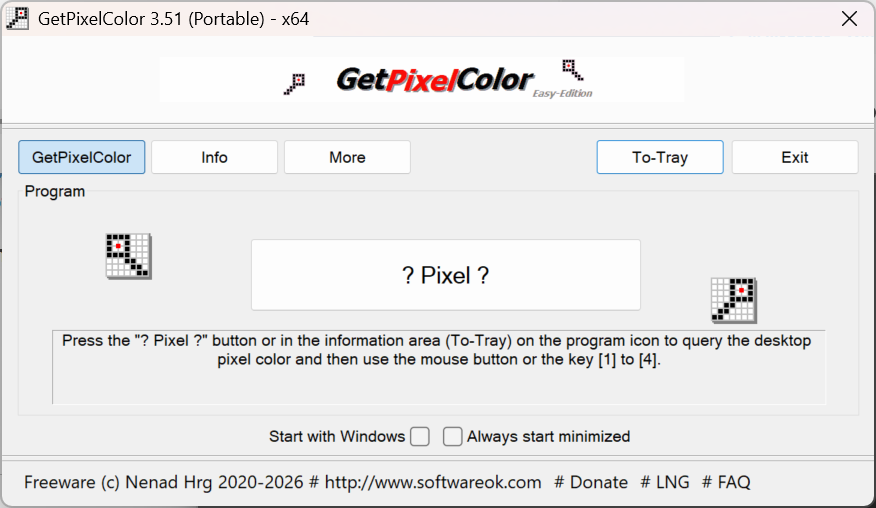
Step 2: Check Pixel Color
Hold down your mouse button and drag the cursor to the point you want to identify. You can view the real-time RGB, RGBA, and HLS values through the program window or the taskbar info area.
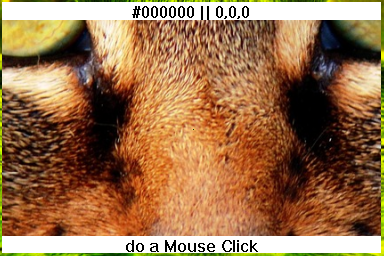
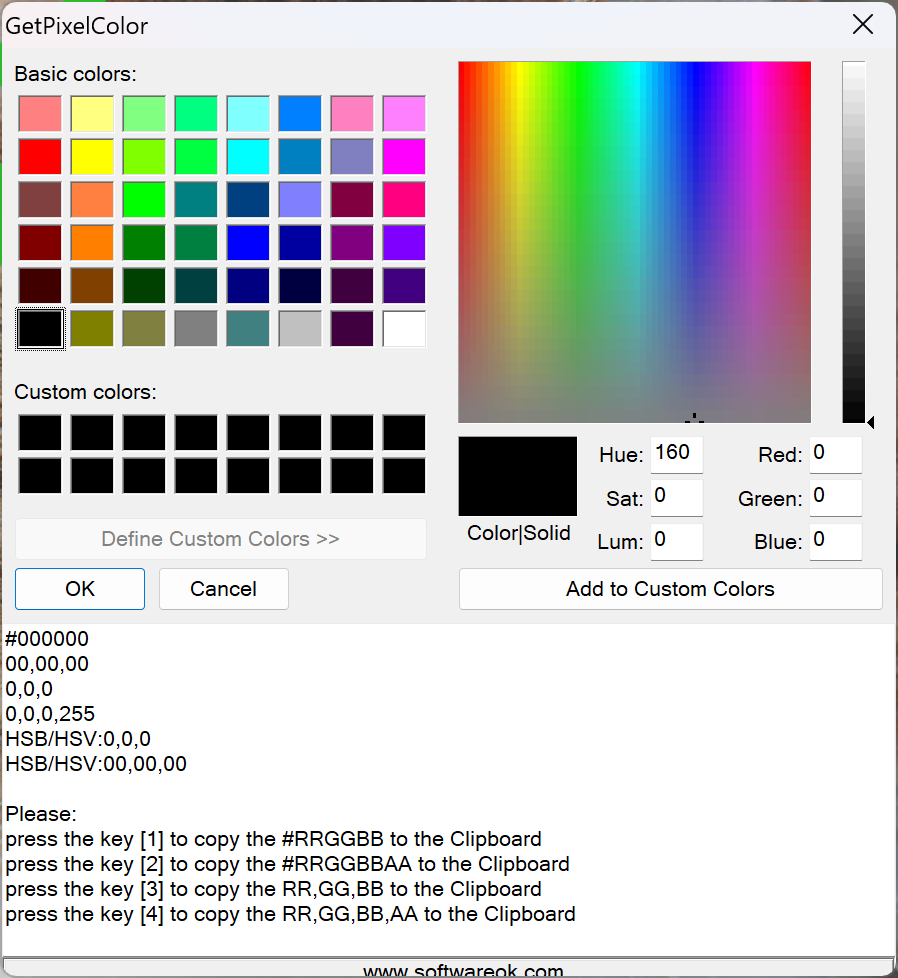
Step 3: Save / Copy Color Codes
To save the extracted color, use your keyboard’s number keys 1 through 4. Pressing these will instantly copy the value to your clipboard or save it to a list, allowing you to recall it whenever needed.
Step 4: Set Options
If you use it frequently, enable the “Start with Windows” option. Because it is so small, you can keep it running in the background without worrying about CPU usage and pull it up whenever you need it.
Personal Review: Using GetPixelColor
Many graphic tools have color pickers hidden deep in their menus or lack them entirely, but GetPixelColor makes it much more convenient to check values anywhere on the screen just by moving your mouse. The fact that it’s under 100KB is a game-changer—I can keep it on a USB drive and immediately start working on any PC. This portability is definitely its strongest selling point.Official Download: https://www.softwareok.com/?Download=GetPixelColor