While using your PC, you’ve likely encountered the frustrating message: “The action can’t be completed because the file is open in another program.” Even after closing everything, some stubborn files just refuse to go away. In these moments, ThisIsMyFile is exactly what you need. ThisIsMyFile is an ultra-lightweight utility that forcibly unlocks files or uses the reboot process to ensure 100% successful deletion of any file, no matter how protected it is. No complex installation is required—just run the executable to instantly solve your file deletion headaches.

| ThisIsMyFile | |
| Purpose: | Forced File Deletion & Unlocking |
| Features: | Freeware, Portable (No Install) |
How to Use ThisIsMyFile Utility
- Method 1: Drag the file and drop it into the app window.
- Method 2: Click the […] button to browse and select the file via Explorer.
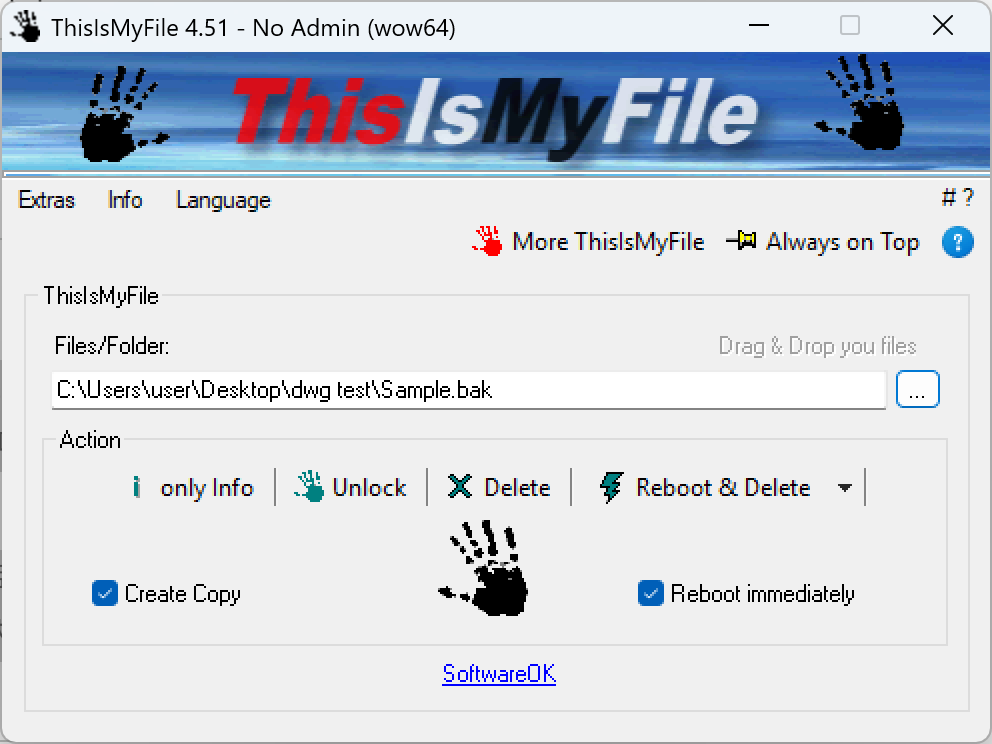
- Unlock: Keeps the file but kills the process currently using (locking) it.
- Delete: Sends an immediate command to wipe the file.
- Reboot & Delete (Recommended): If the file won’t budge now, this ensures it is 100% deleted during the Windows reboot cycle.
- Create Copy: Creates a backup of the file before deletion, just in case.
- Reboot immediately: Your PC will restart instantly to complete the deletion process.
Personal Review: Why ThisIsMyFile is a Life-Saver
Having tried numerous “unclocker” tools, ThisIsMyFile stands out because of its extreme portability. The Reboot & Delete feature is particularly impressive—it acts as a “silver bullet” for files protected by the system that usually require complex permission changes to remove. If you’re tired of fighting with “File in Use” errors, keep this tool on your desktop or a USB drive. Being able to solve a technical roadblock with a single drag-and-drop makes your workflow much more efficient.
Download provided by: ThisIsMyFile.zip (SoftwareOK)