Recommended for:
✓ Users running multiple programs who frequently run out of available RAM
✓ Users experiencing system lag who need an immediate performance boost
✓ Anyone looking for a one-click PC optimization tool without complex settings
| RAM Saver Professional | |
| Use Case: | Real-time Windows RAM Optimization & Monitoring |
| Features: | One-Click Optimization, System Stability Enhancement |
RAM Saver Professional: User Guide
Step 1: Installation & Setup
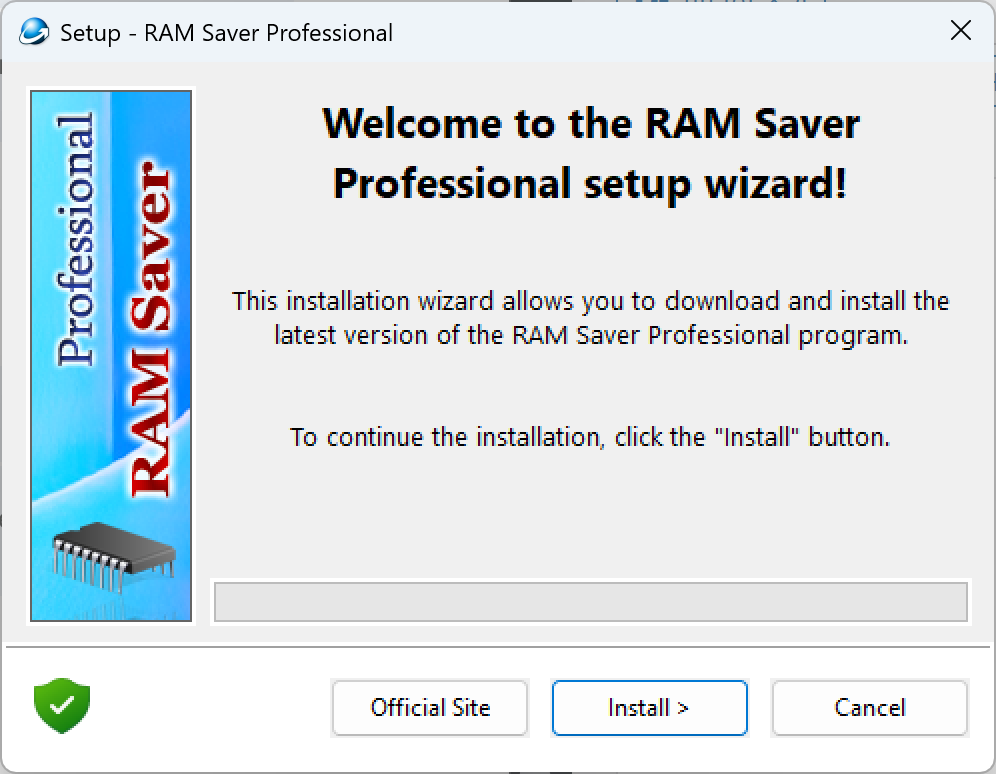
Run the setup_ramsaverpro.exe file you downloaded to start the installation. The process is straightforward. Once finished, launch the program to see a dashboard showing your PC’s current memory status at a glance.
- Setup File: setup_ramsaverpro.exe
- How to Launch: Click the desktop icon to run the application
Step 2: Check Initial Memory Status
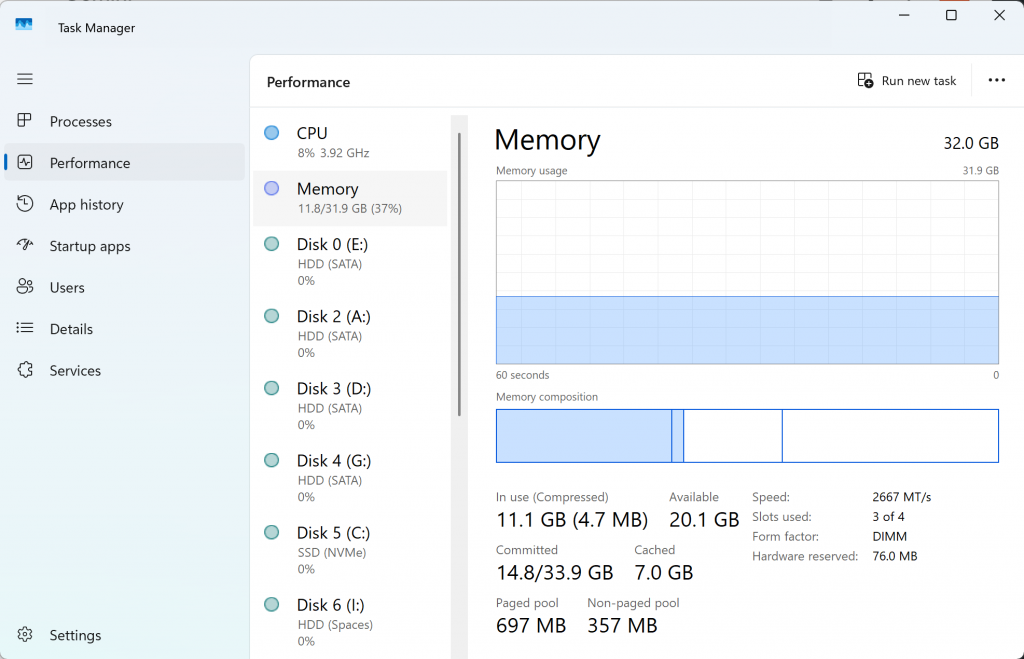
To see the impact, check your Windows Task Manager (Ctrl+Shift+Esc) under the “Memory” tab first. Before optimization, you may notice high usage as unnecessary data occupies your RAM.
- Test Environment: 11.9GB used (37% utilization) before optimization
- Note: The more apps you have open, the higher this initial number will be.
Step 3: Run One-Click Optimization
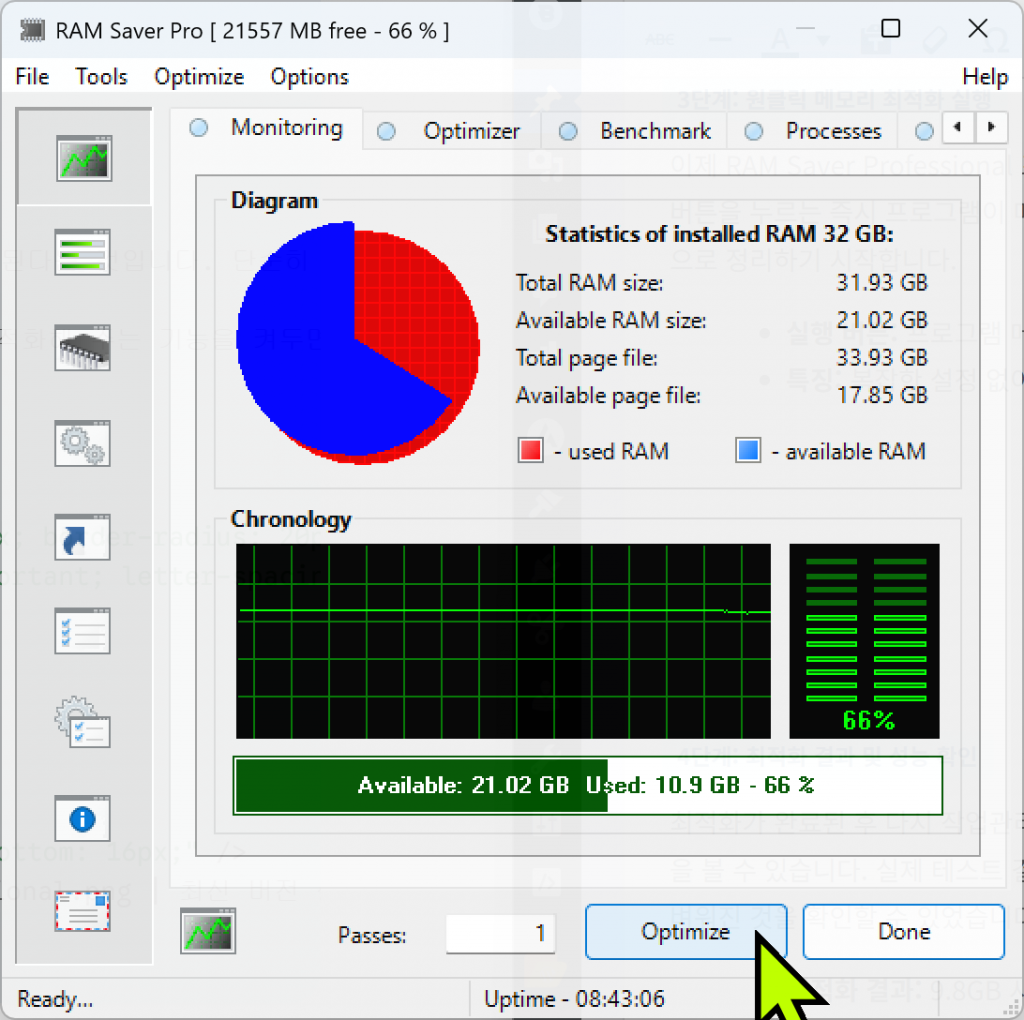
Click the Optimize button at the bottom of the RAM Saver Professional window. The program will immediately analyze your RAM and release resources that are being held unnecessarily by background processes.
- Action: Click ‘Optimize’ on the main dashboard
- Benefit: Instant cleanup without needing to manually close apps
Step 4: Verify Performance Improvements
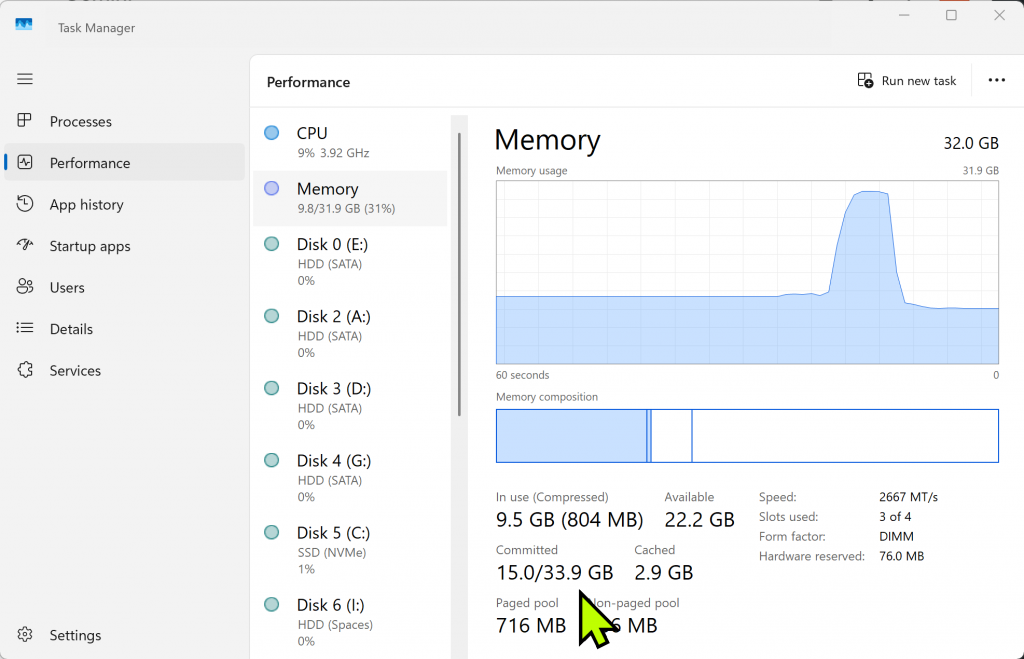
After optimization, check the Task Manager again. In our test, RAM usage dropped by over 2GB, making the system feel noticeably more responsive.
- Results: Usage dropped to 9.8GB (31% utilization)
- Outcome: Reclaimed valuable system resources and improved response time
Personal Review: My Experience with RAM Saver Pro
In my testing, the best part about this tool is how fast it applies the optimization. While modern PCs with high RAM might not feel a “night and day” difference every time, the numbers clearly show that it successfully purges idle data from the memory. It’s especially effective for 8GB RAM systems where opening a few Chrome tabs alongside other tools can lead to immediate stutters. Since Windows itself is quite memory-hungry these days, having a lightweight tool to clean things up without a full reboot is a massive time-saver. If your PC feels sluggish after a few hours of work, this is definitely worth a try.Official Website: https://www.wintools.net/download/index.html