Recommended for:
• Users who want to view specialty files like PSD, RAW, or AI without Photoshop
• Users who need to batch-convert hundreds of images to WEBP, JPG, etc.
• Users who want to search and organize large photo folders at lightning speed

| XnView MP (64-bit) | |
| Key Features: | Viewer, Batch Convert, Editing |
| Formats: | 500+ (PSD, RAW, HEIC, etc.) |
5 Key Ways to Use XnView MP
Step 1: Exceptional Compatibility (500+ Formats)
The biggest advantage is compatibility. It supports standard JPG and PNG, as well as PSD (Photoshop), TIFF, RAW, AVIF, and JPEG-XL. You can inspect layered files or review high-resolution photos without installing Photoshop.
Step 2: Quick Editing via the Toolbar
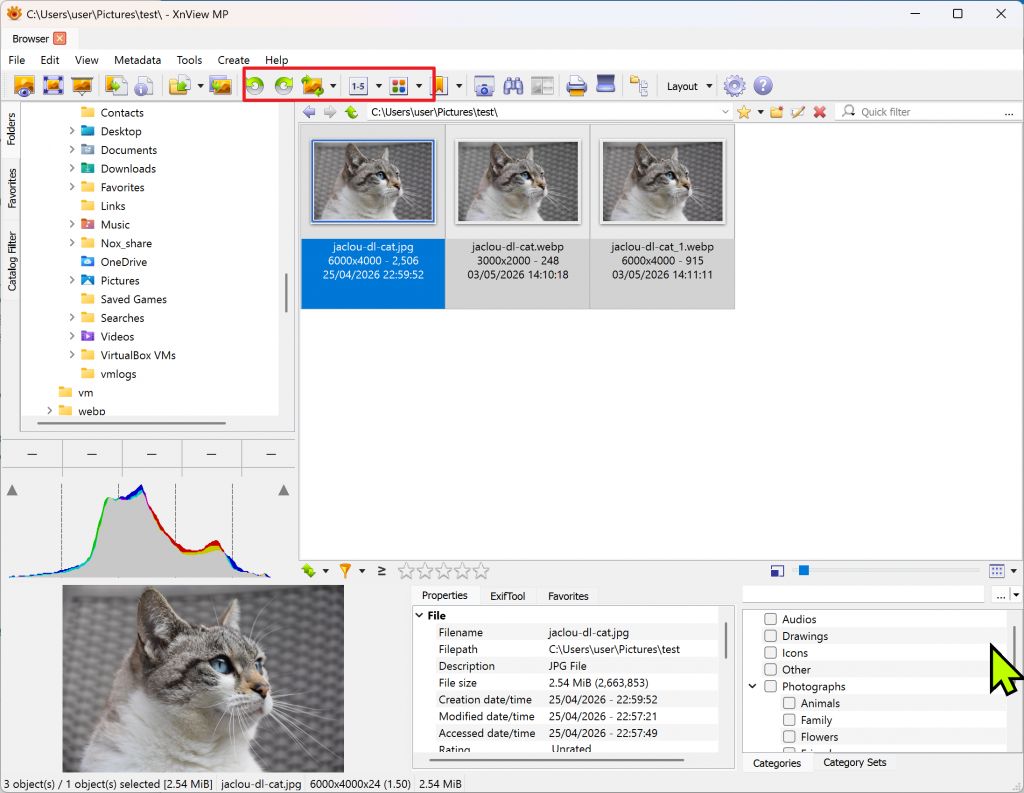 When you open a photo, intuitive icons appear on the top toolbar. Pressing the [Rotate buttons] instantly corrects the orientation, while Crop and Resize can be executed with a single click.
Step 3: Instant Format Conversion (WebP, etc.)
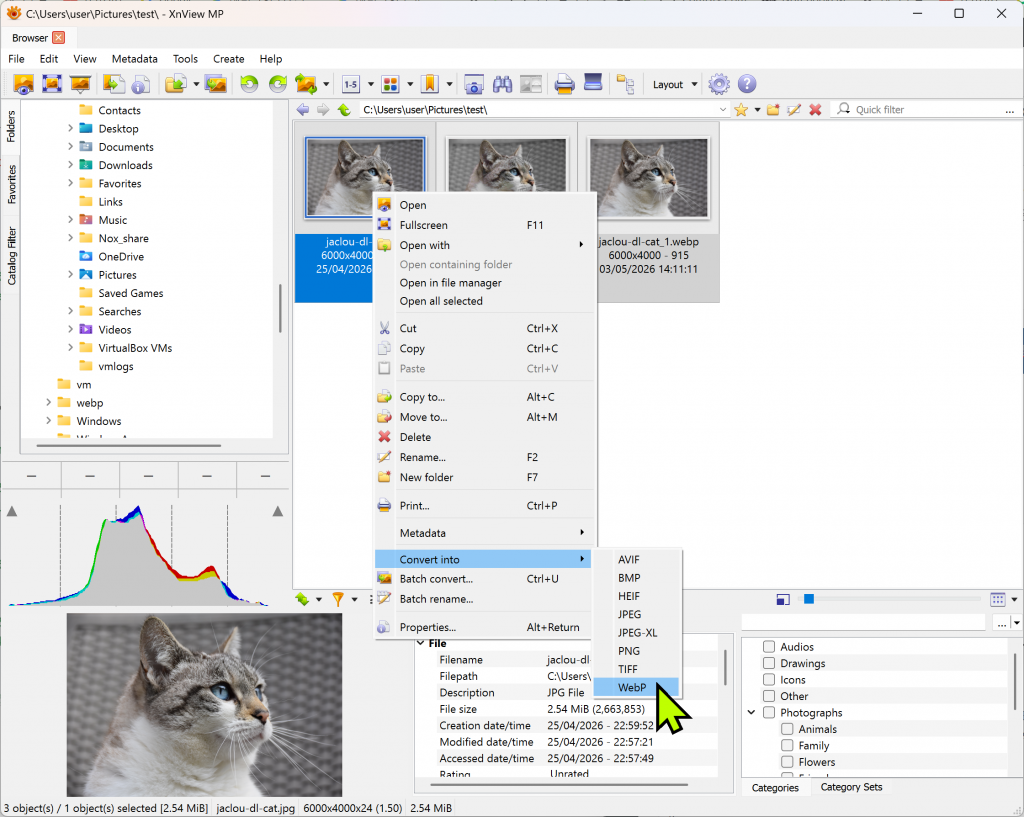 Simply Right-click on a photo and select the [Convert into] menu. You can change to your desired extension instantly without complex settings. For example, you can quickly convert large images to WebP format to save storage space.
Step 4: Batch Convert Module
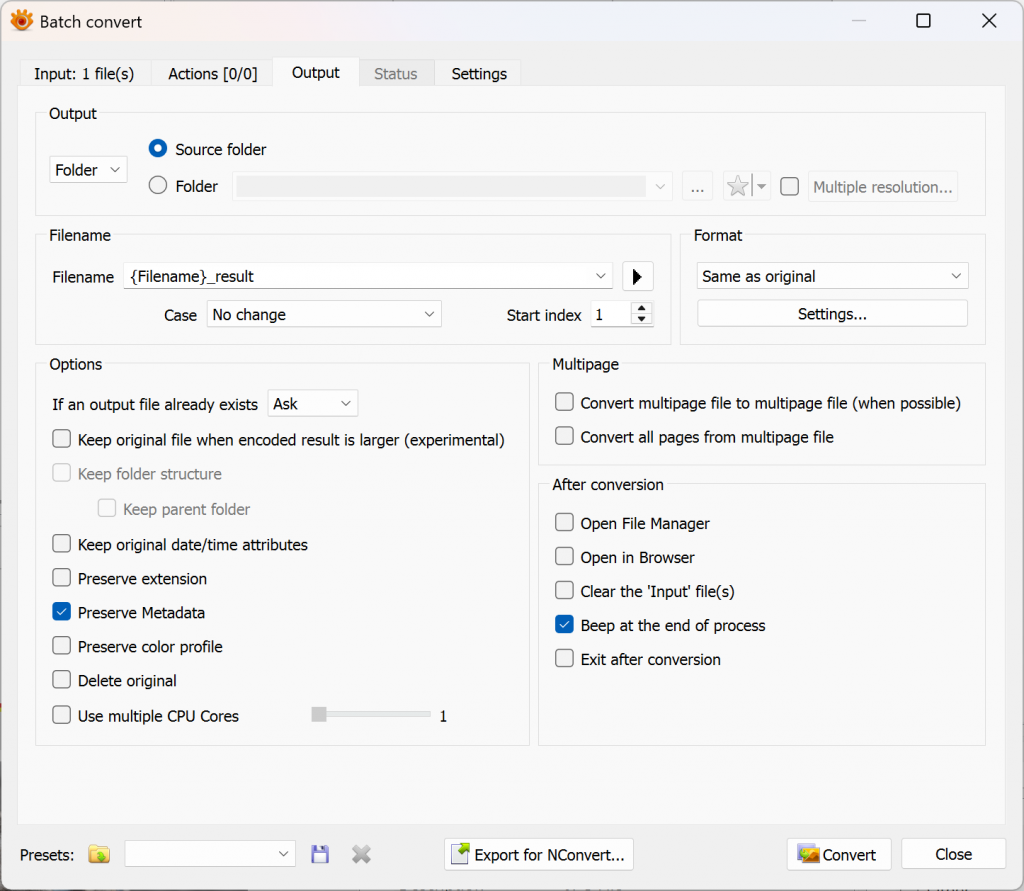 If you need to resize or watermark dozens of photos at once, use the XnConvert module. Combined with the Batch Rename feature, organizing a massive library of photos takes only a few minutes.
Step 5: Custom Layout Optimization
You can freely dock the folder tree, file info, and preview panes around the central browser. Speed up your workflow by configuring a layout that perfectly matches your working style.
Personal Review: Using XnView MP
After using it myself, the most convenient part of XnView is the ability to process multiple images at once, which significantly reduces work time. I particularly loved that I could compress photo sizes or change formats in bulk rather than one by one. The image preview speed is incredibly fast, making it much more efficient than Windows Explorer for organizing files. While the many menus might feel a bit overwhelming at first, even using just the basic features makes it a highly valuable program.Official Website: https://www.xnview.com/