After using your computer for a long time, the C drive often fills up without you even noticing. If you’re hesitant to delete apps from the Control Panel because you’re not sure what’s important, try HDCleaner. This tool identifies and safely removes “unnecessary Windows junk files” hidden deep within the system, while leaving your personal games, apps, photos, and documents completely untouched.
Data Protection: Your personal documents, photos, and videos are never deleted.
Manual Action Required: If your disk is full due to large games or software, you must still uninstall those manually via the Control Panel.
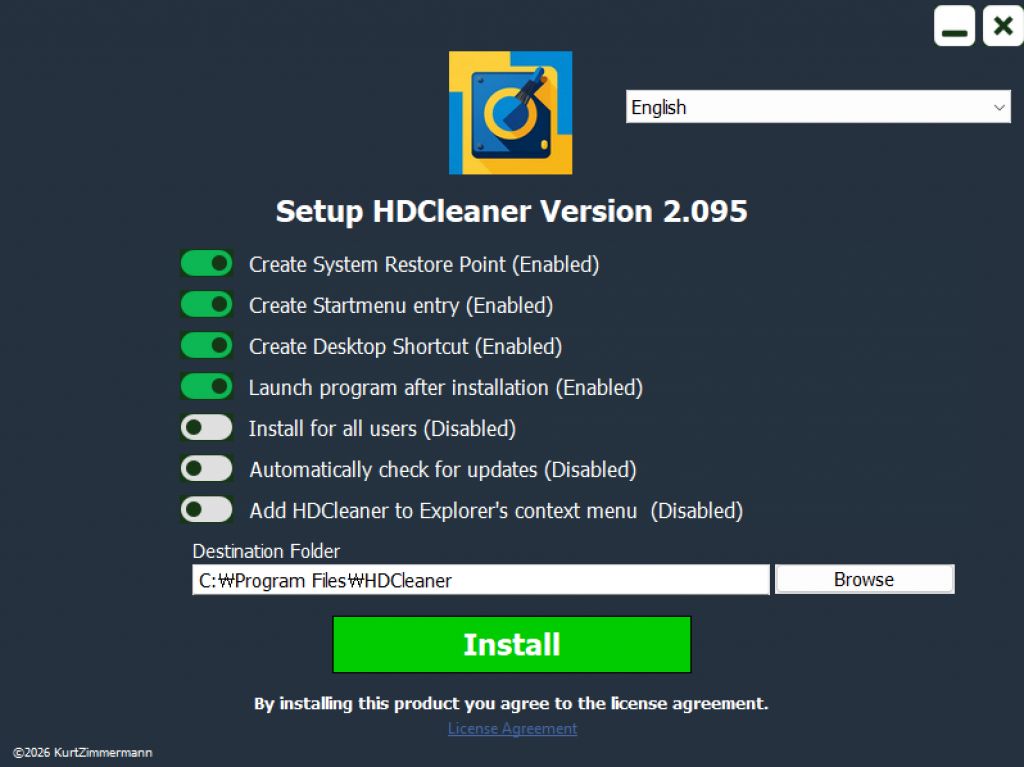
Key Features of HDCleaner
Quickly clean up browsing history, Windows update remnants, and other junk files that are typically hard for users to find manually.
It doesn’t touch your personal files. You can clean your system without worrying about “accidentally breaking Windows.”
When your drive is mysteriously low on space, running HDCleaner helps recover valuable disk real estate instantly.
How to Use HDCleaner for Disk Cleanup
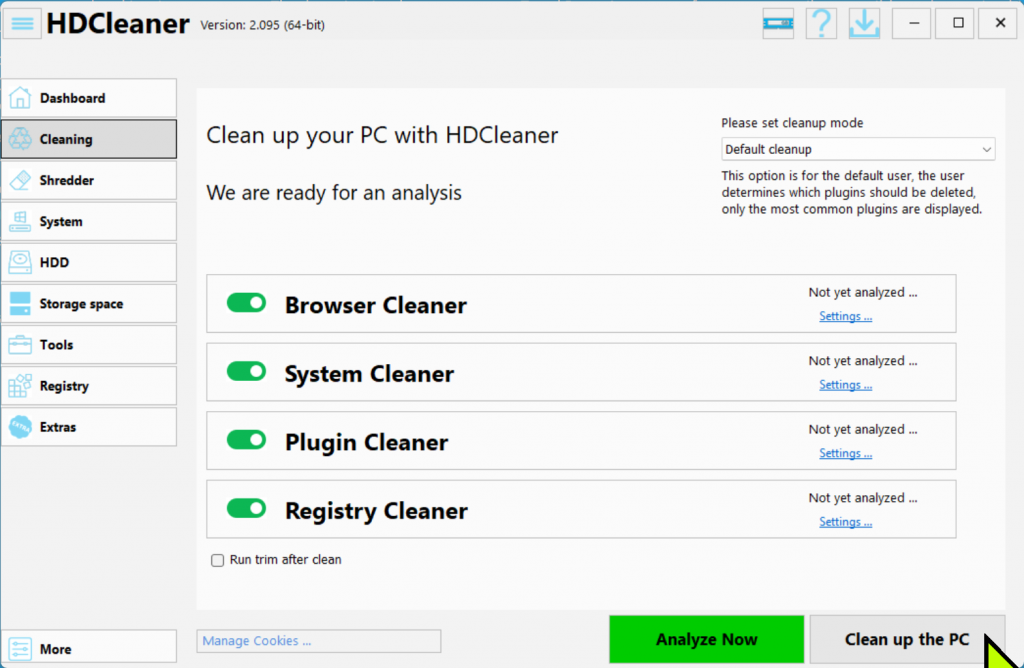
Click the [Clean] tab on the left and select [Clean up the PC]. This clears browser cookies, cache, and Windows temp files in one go.
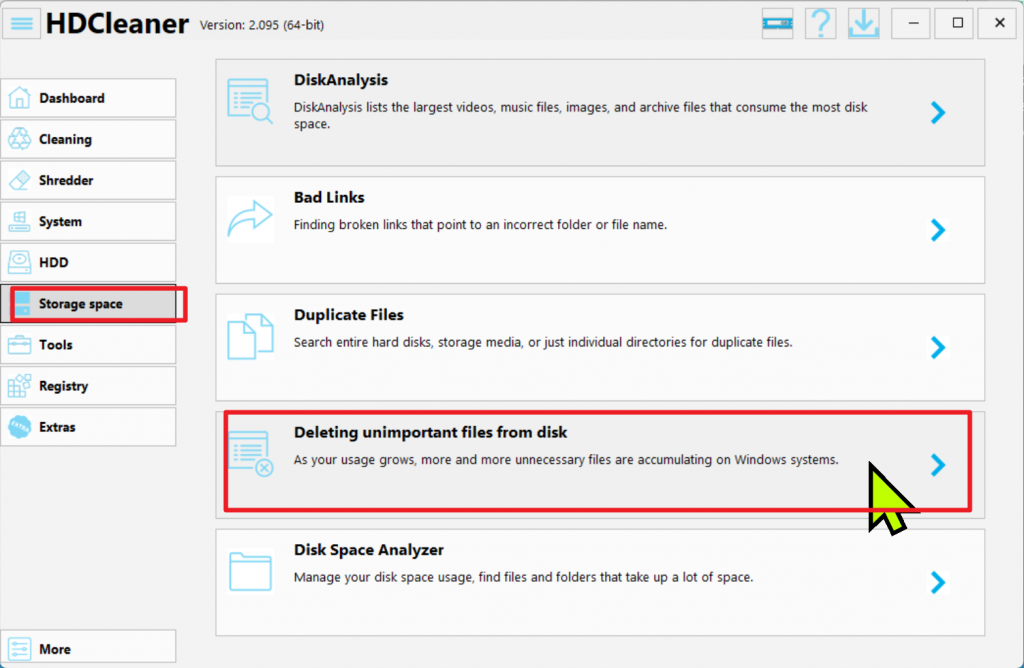
In the [Storage space] menu, select “Deleting unimportant files from disk.” Select your C: or D: drive to let the program search for junk. Once the list appears, click Action > Delete file at the bottom left to clear the space.
Final Thoughts: My Review
After using HDCleaner, I found the cleanup features to be impressively detailed. It is very convenient to clear temporary files, caches, and log files all at once. The ability to selectively delete items based on your needs is a huge plus.
While the interface might feel a bit feature-heavy at first, it offers much more than a simple cleaning tool. Once you get used to the options, it becomes an incredibly reliable tool for keeping your Windows system lean and fast.
Note: This software requires installation and is highly specialized for Windows optimization.