Are you tired of manually copying your important files every day? With AOMEI Backupper Standard, you can set it up once and forget about it. It automatically performs backups at your preferred time. As long as your external hard drive or USB is connected, it intelligently manages and updates your files, ensuring you always have a secure copy.
Anyone looking to automatically sync data to an external hard drive or NAS.
Those seeking an intuitive, free, and reliable backup solution.

| AOMEI Backupper Standard | |
| Size: | 190 MB |
| Key Features: | Scheduled auto-backup & Sync |
| Version: | Free (Standard Edition) |
How to Use AOMEI Backupper for Auto-Backups
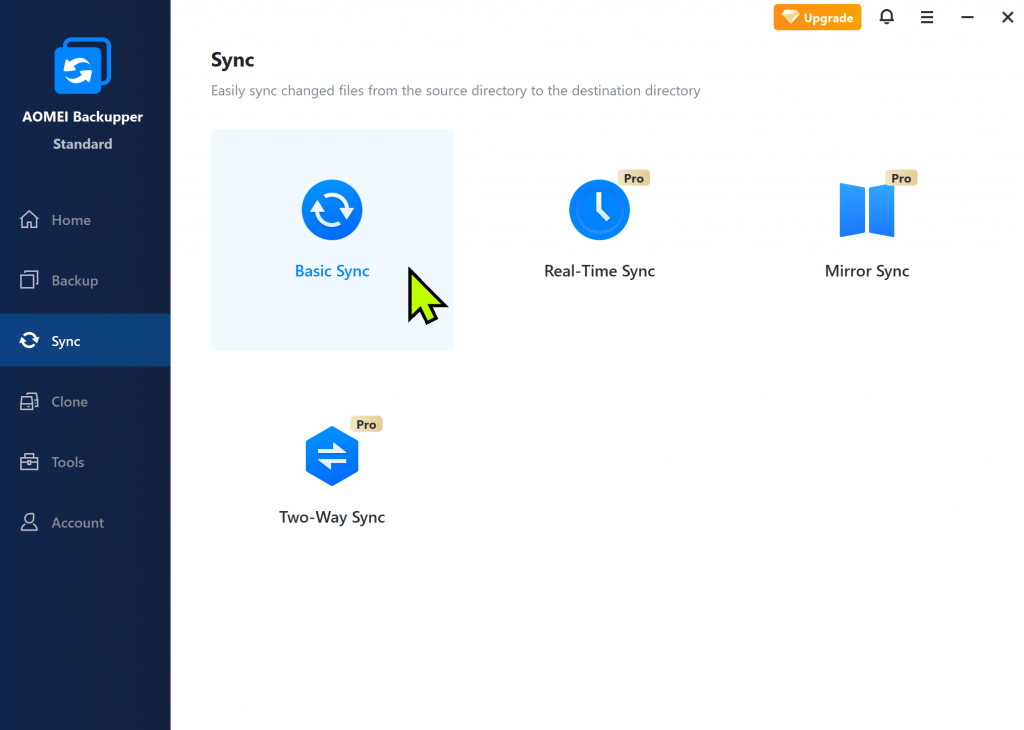
From the menu on the left, click [Sync] and choose [Basic Sync] to start.
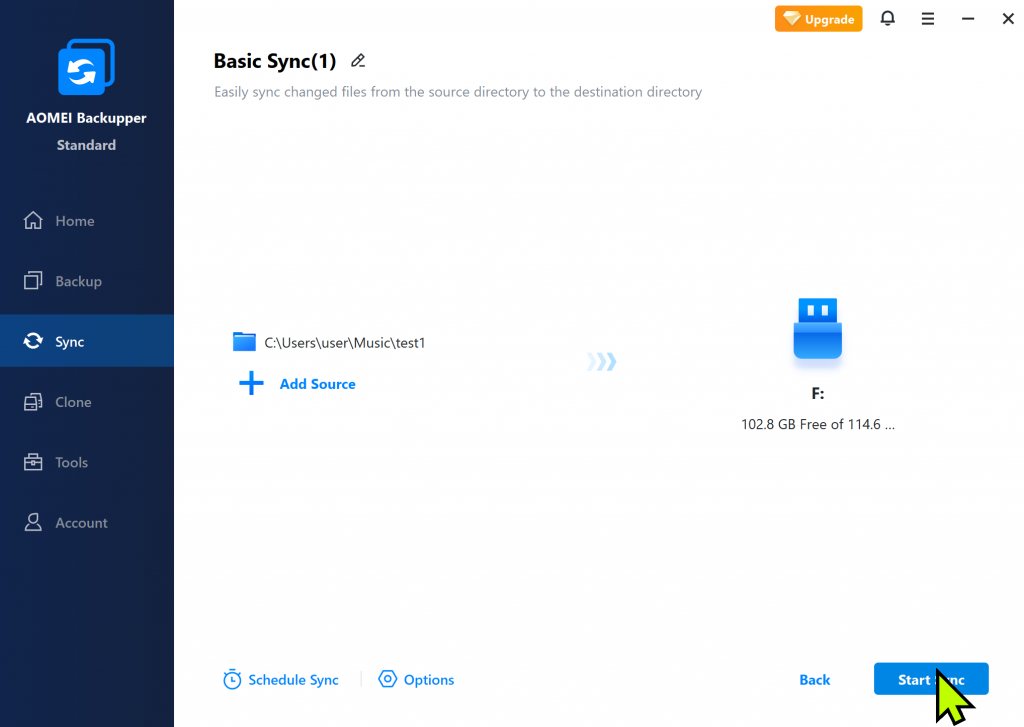
Click [Add Folder] on the left to select your source files, and then click the area at the bottom right to choose your destination (external drive or USB).
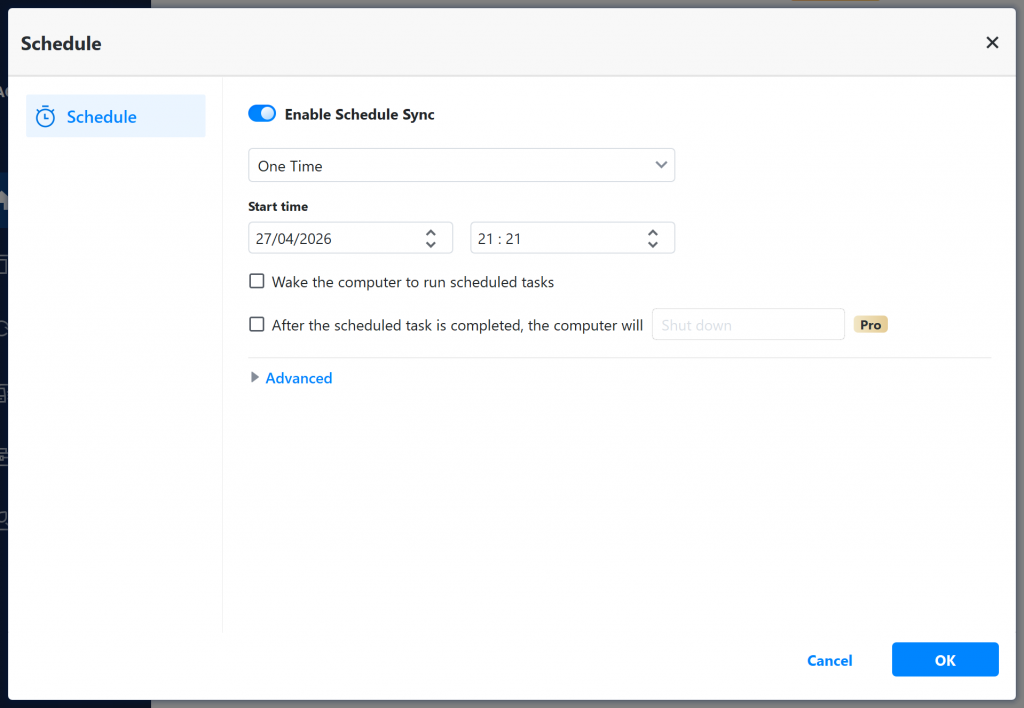
Click the [Schedule Sync] button at the bottom and enable ‘Schedule Sync’. In the settings window, select [Daily] and choose the specific time you want the backup to run. It will now automatically back up your files every day.
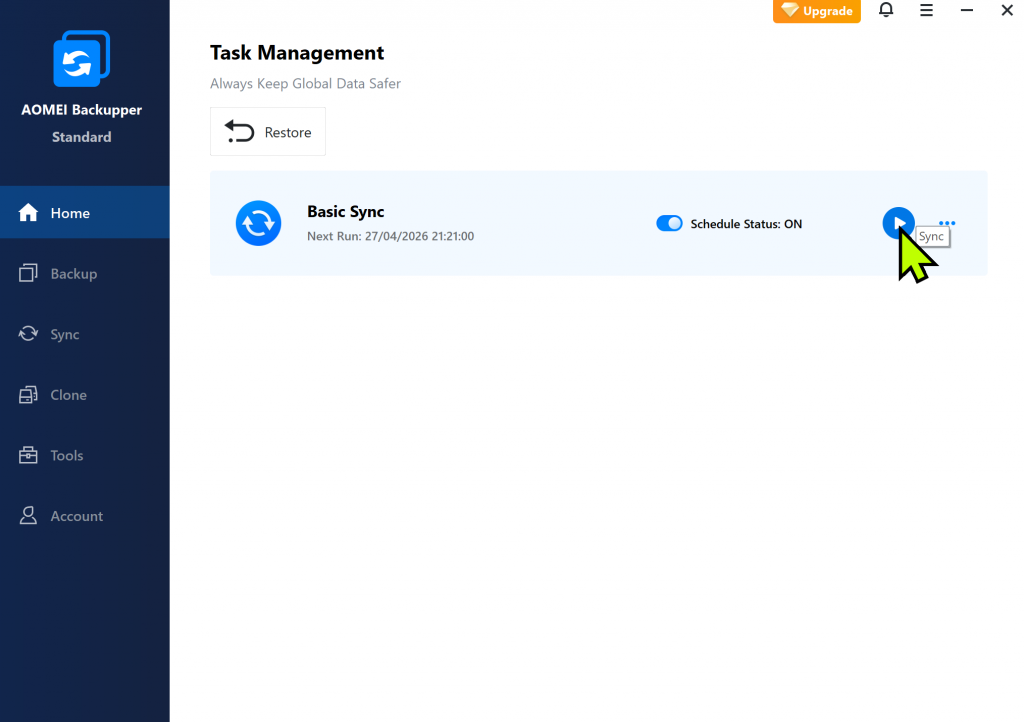
Go to the [Home] tab to see your backup list. Click the menu icon on your task to perform an immediate backup whenever you need, regardless of the schedule.
My Experience with AOMEI Backupper
After using it firsthand, I found the scheduling feature to be incredibly convenient. Being able to set it to automatically back up my source files once a day at a specific time takes all the guesswork out of data protection. Once configured, it runs silently in the background, so you don’t have to give it a second thought.
The program itself is clean, ad-free, and features a well-organized interface, making it very accessible even for beginners who have never used backup software before.
Beyond its well-known SSD migration and cloning capabilities, the automated backup feature is excellent. For most standard backup needs, the free Standard version is more than enough to keep your data safe and secure.
Official Website: https://www.aomeitech.com/