Over time, your PC accumulates browser caches and temporary system files that can significantly slow down performance. CCleaner is a powerful, user-friendly tool that helps you declutter your system with just a few clicks. It’s perfect for cleaning up junk data and managing heavy startup programs, creating a cleaner and faster working environment for your computer.
Those looking to speed up boot times by managing startup apps.
People who want to declutter their right-click (context) menu.

| CCleaner (v6.39) | |
| Size: | 77.5 MB |
| Type: | Portable & Offline Installer |
CCleaner Key Features & Usage
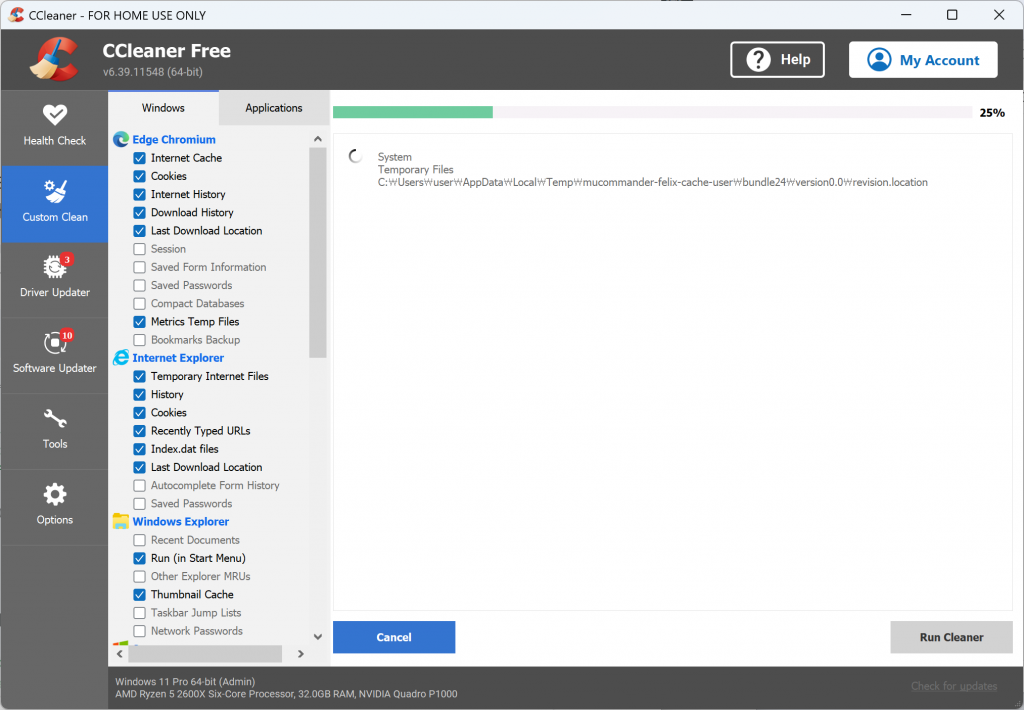
This is the core feature. You can select and delete Windows temp files, Recycle Bin contents, and logs, as well as browser caches and cookies for Chrome or Edge. Simply click [Analyze], then [Run Cleaner] to free up space.
Navigate to [Tools] > [Startup]. Here you will see a list of applications that launch automatically when you turn on your PC. By selecting unnecessary programs and setting them to Disable, you can significantly improve your boot speed.
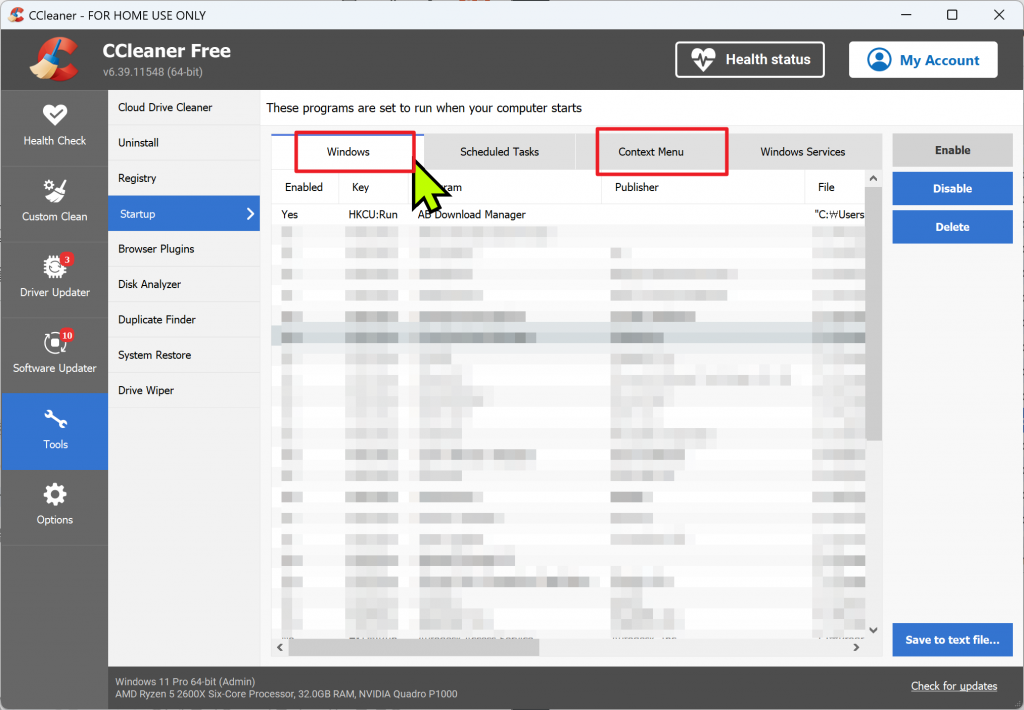
Go to [Tools] > [Startup] > [Context Menu]. This feature allows you to clean up the pop-up menu that appears when you right-click on a file. Disabling or deleting unnecessary entries keeps your right-click menu clean and efficient.
My Experience with CCleaner
In my experience, CCleaner is most useful for its primary functions: clearing out junk and optimizing the system. Being able to wipe temporary files and cache in one go is incredibly convenient for regaining disk space.
The startup management feature also provides a noticeable boost to boot times. Overall, the interface is intuitive and easy to navigate, even for those new to PC optimization. While the context menu cleanup is an “extra” feature, it’s a nice-to-have for keeping the workflow uncluttered.
Note: The portable version is highly recommended as it requires no installation and can be run immediately.