Losing important data due to a PC crash or an unexpected system error is a nightmare. To prevent this, Everyday Auto Backup is an excellent solution that automatically backs up your desktop or specific folders on a schedule you define. Its smartest feature is the ability to update only the “changed files,” making the process fast and highly efficient.
Users who want to automate backups to avoid forgetting the process.
Anyone looking for a lightweight backup program without complex configurations.

| Everyday Auto Backup | |
| Use Case: | Schedule-based automated file backups |
| Key Feature: | Efficient incremental updates |
3-Step Guide to Everyday Auto Backup
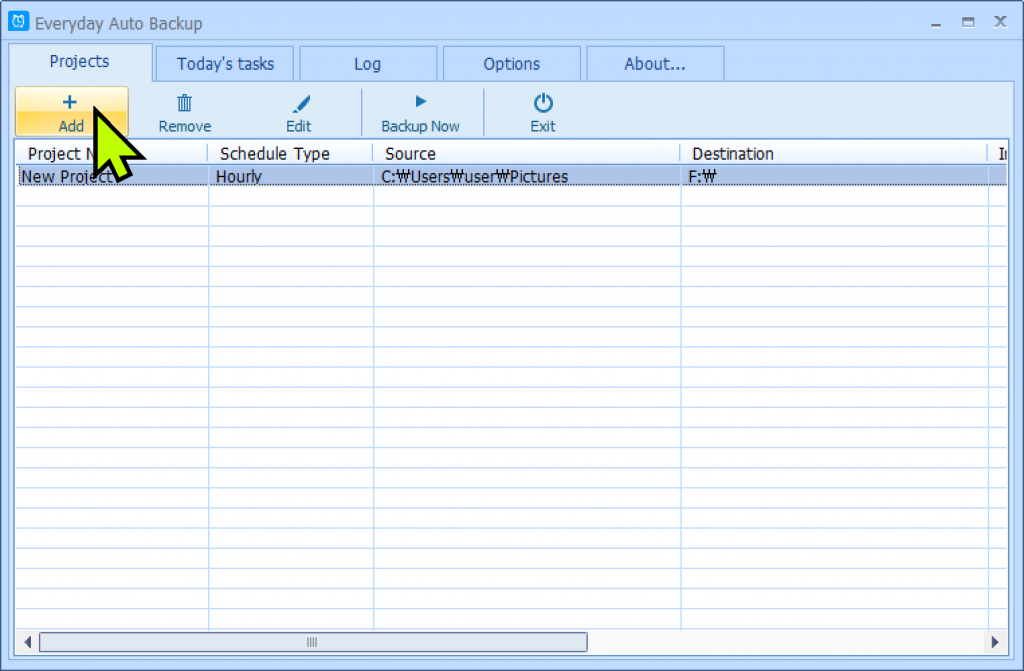
After launching the program, click the [Add+] button in the top-left to select the folder you want to back up (e.g., Desktop) and the destination path (e.g., External HDD, USB).
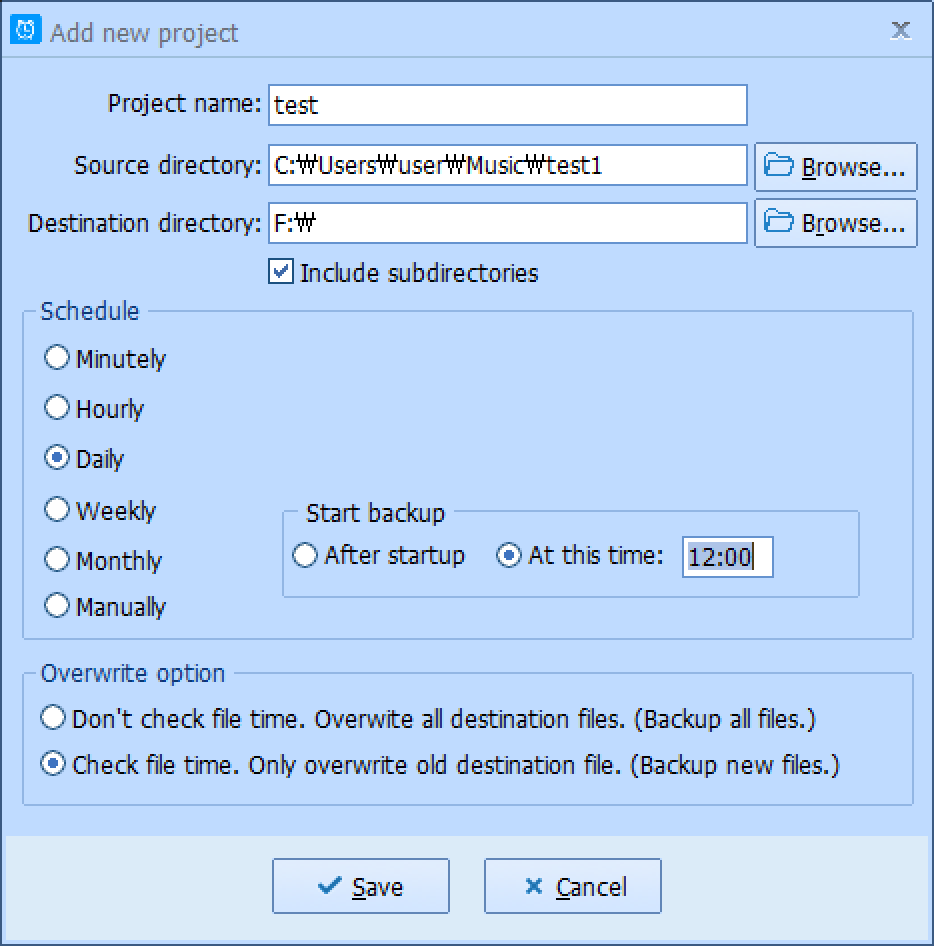
Under Overwrite option, select ‘Check file time’. This ensures only modified files are updated, saving time and space. Then, set your preferred schedule (e.g., Daily or Weekly) at the bottom.
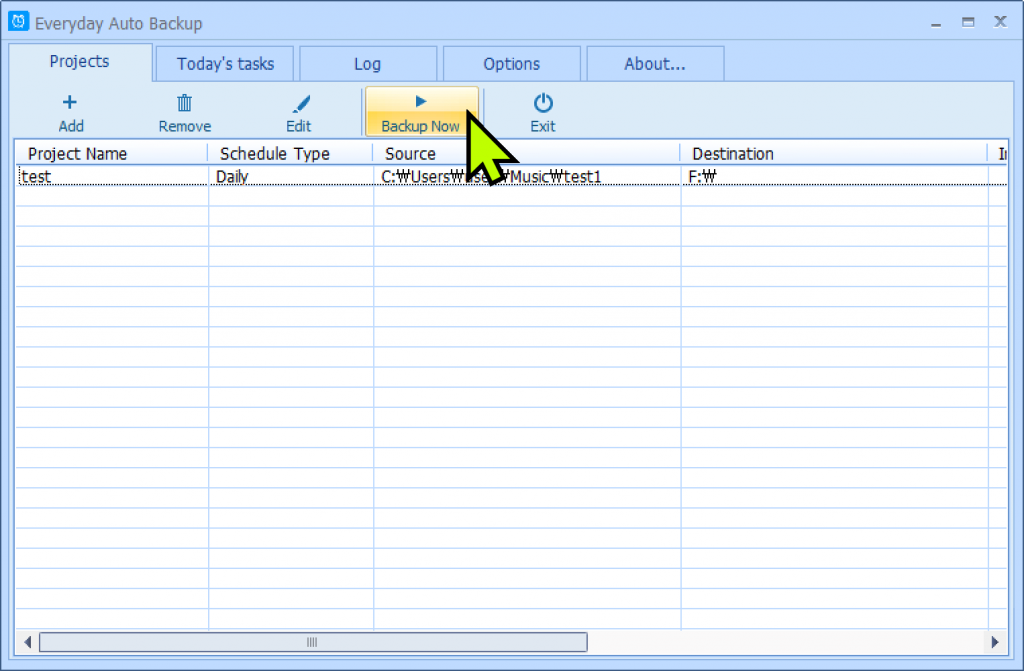
Configure the software to launch upon Windows startup to ensure your backups run reliably without intervention. If you ever need an immediate backup, simply click the [Backup now] button in the top menu.
Final Thoughts
I found the automatic backup to my external drive incredibly convenient. Once the schedule is set, you don’t have to worry about data safety anymore, as it runs seamlessly in the background.
The program is lightweight, ad-free, and highly intuitive. Even if you’re not tech-savvy, you can set up a robust data protection system in just a few minutes. If you want a “set-it-and-forget-it” backup solution, this is a perfect choice.
Official Website: https://www.backupsoft.net/