In Windows 11, you can enable dark mode not only for the entire system but also for individual apps — including the built-in Notepad app.
This guide will show you how to turn on dark mode in Notepad, step by step.
Enable Notepad Dark Mode
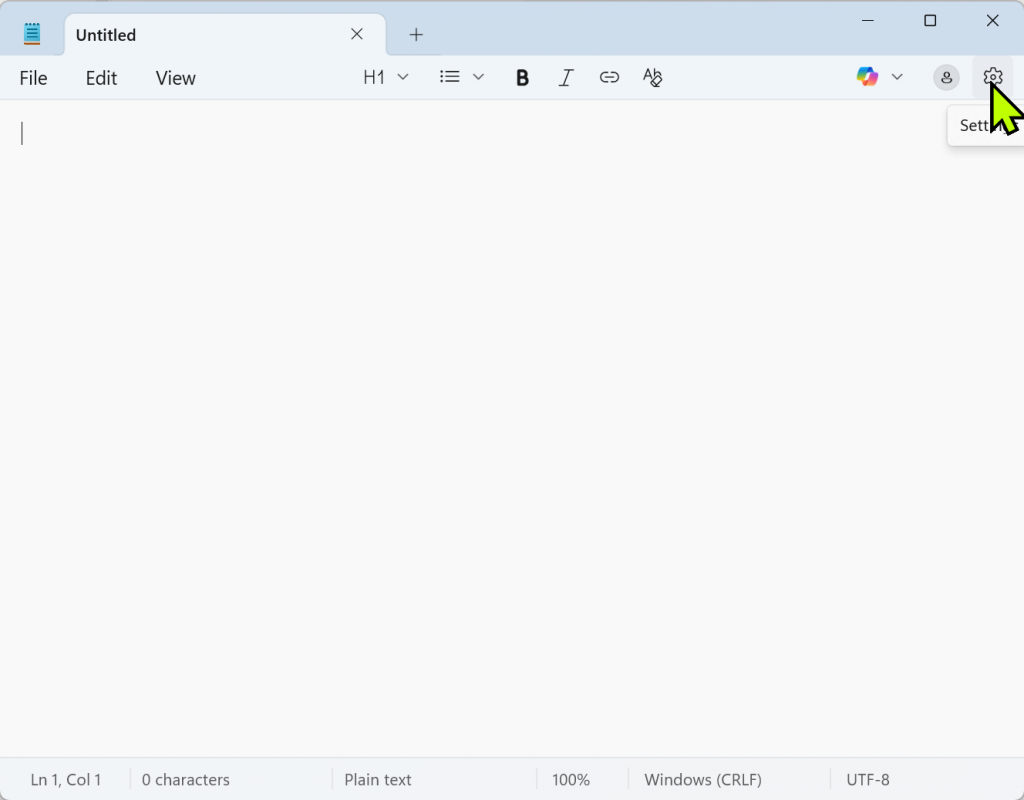
1️⃣ Open the Notepad Settings
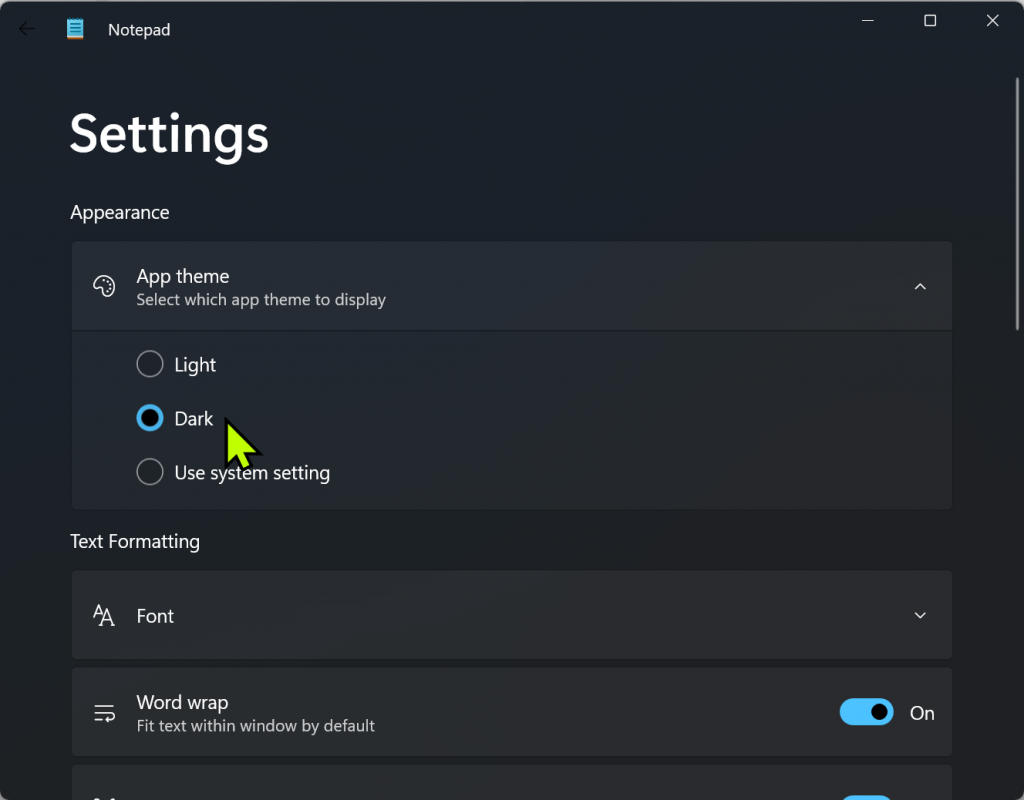
2️⃣ Go to “App Theme”
3️⃣ Choose Your Theme Option
You’ll see three options under App Theme:
Use system setting — Sync with your Windows light/dark theme
Light — Always use light mode
Dark — Always use dark mode
✅ To force Notepad into dark mode regardless of Windows settings, simply select Dark.
Summary
Here’s a quick recap:
✔️ Notepad in Windows 11 supports individual dark mode settings
✔️ You can set it to always dark, always light, or follow system theme
✔️ No need to change your entire system just to enjoy dark mode in Notepad