Sometimes you just want to send notes, files, or links to yourself. Telegram actually has a built-in feature designed exactly for that — it’s called “Saved Messages.”
At first glance, the feature might not be obvious, but it’s actually very simple to set up.
Let’s walk through how to use Telegram’s Saved Messages feature step by step.
Download Telegram for PC

Telegram is an open-source messenger known for its speed, security, and multi-platform support.
The PC version offers stable performance, and full support for channels, bots, and syncing across devices.

How to Set Up Telegram “Saved Messages” (Send to Yourself)
1️⃣ Open the Menu
Launch the Telegram app and click the ☰ (hamburger menu) at the top left corner.
Then, click your profile picture at the top of the menu.
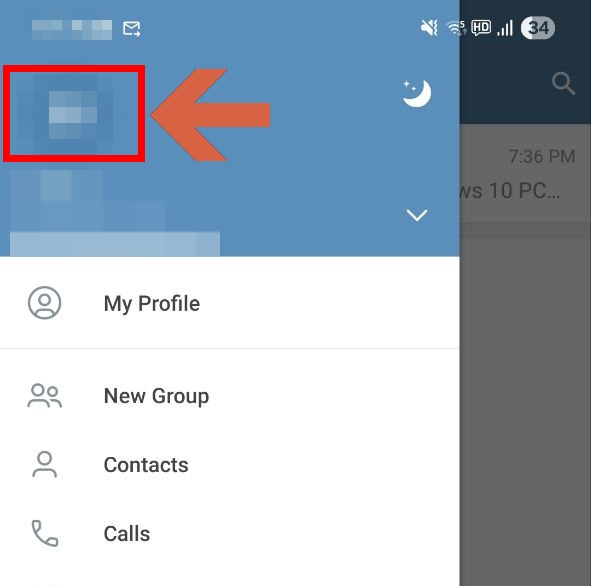
2️⃣ Set Your Username
In the profile page, you may notice that the username field is empty.
This is because Telegram accounts are usually created with a phone number.
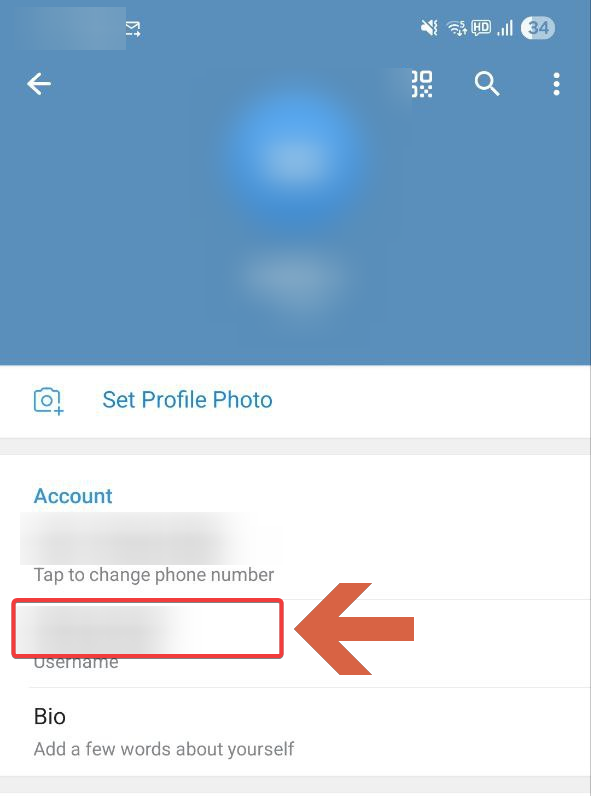
Click the Username field and enter your desired ID.
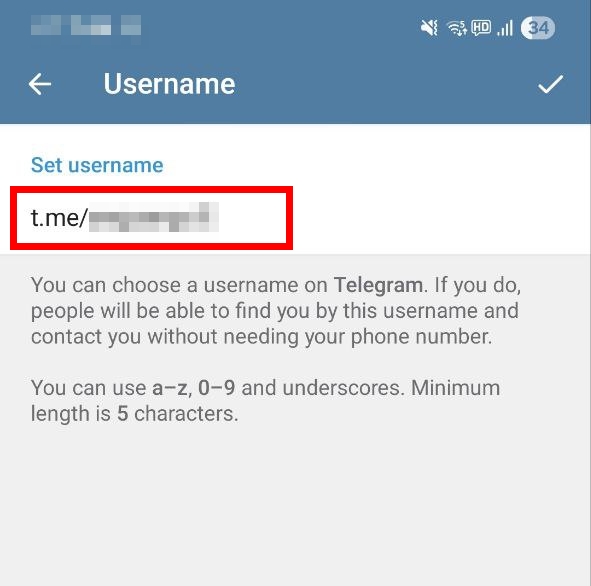
Once set, you can now message yourself via this username.
💡 Tip:
- You can be contacted via
@usernameeven without sharing your phone number. - If privacy is a concern, only share your username when necessary.
3️⃣ Send a Message to Yourself
Click the search bar and type your Telegram @username.
Then tap the magnifying glass icon to search.
You will see a chat titled Saved Messages appear.
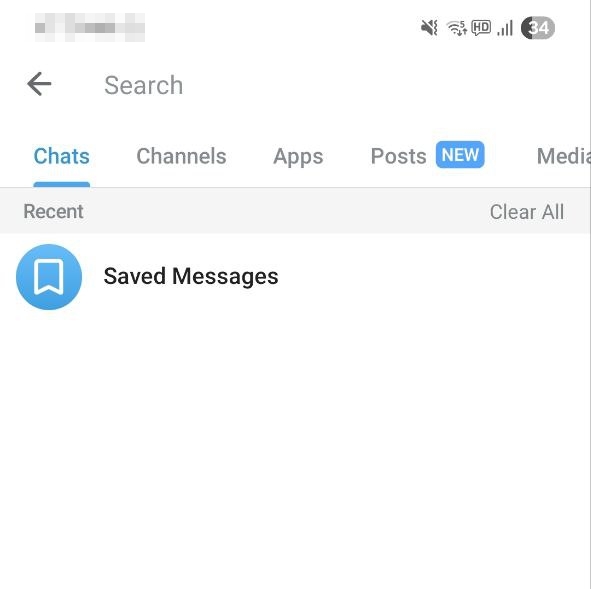
This is your personal space for saving notes, links, files, or anything you want!
💡 Tips for Using Saved Messages
| 📎 File Storage | Quickly transfer files between PC and mobile devices |
| 📝 Notes | Save links, ideas, or account info like a digital notepad |
| 🔗 Bookmarks | Store messages or photos you want to revisit later |
| 💬 Temporary Transfer | Use as a staging area before forwarding to other accounts |
💬 Saved Messages sync automatically across PC and mobile.
Everything stays up to date, no matter which device you use.
✅ Summary: Telegram “Send to Yourself” Setup
Just like KakaoTalk, you can use Telegram’s Saved Messages to store messages for yourself.
📲 In short:
1️⃣ Set your username from profile settings
2️⃣ Search for@yourusername
3️⃣ Start using the Saved Messages chat like a private notebook
Keep your important files, ideas, and links safe — without needing to send them to someone else.