
WinDirStat
Free tool to see what is taking up space on your hard drive in Windows
Many users don’t know what is taking up space on hard drive until storage becomes full.
Looking through folders manually rarely finds the real problem.
WinDirStat scans your disk and visualizes usage with an easy color map.
This tutorial shows how to identify large files and free space quickly.
WinDirStat Download
You can download WinDirStat using the link below.
After installation, it is ready to use immediately.
What Is Taking Up Space on Hard Drive
WinDirStat Guide
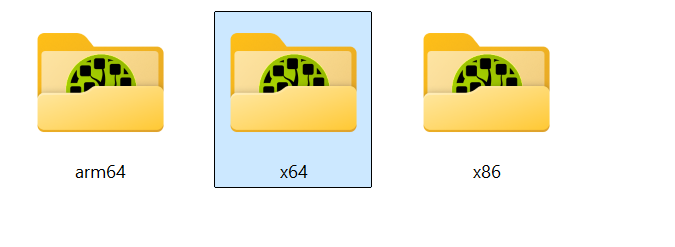
1) Extract the archive. You will see three folders: arm64, x64, and x86.
Open the x64 folder and run the WinDirStat executable.
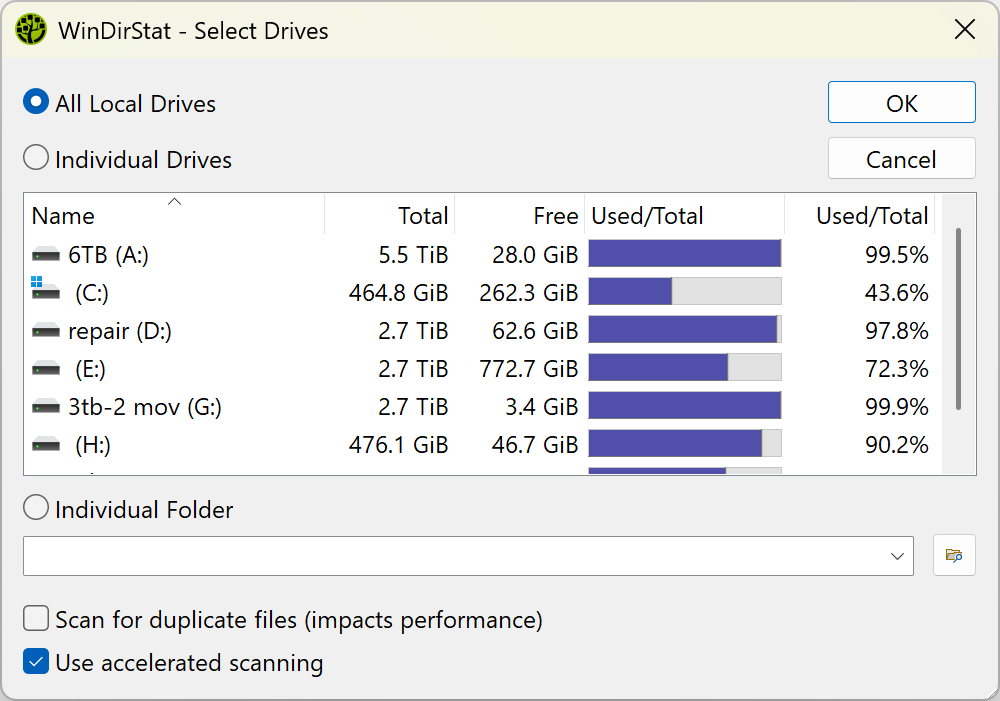
2) Select the drive you want to analyze.
Choose the disk where you want to check storage usage and start the scan.
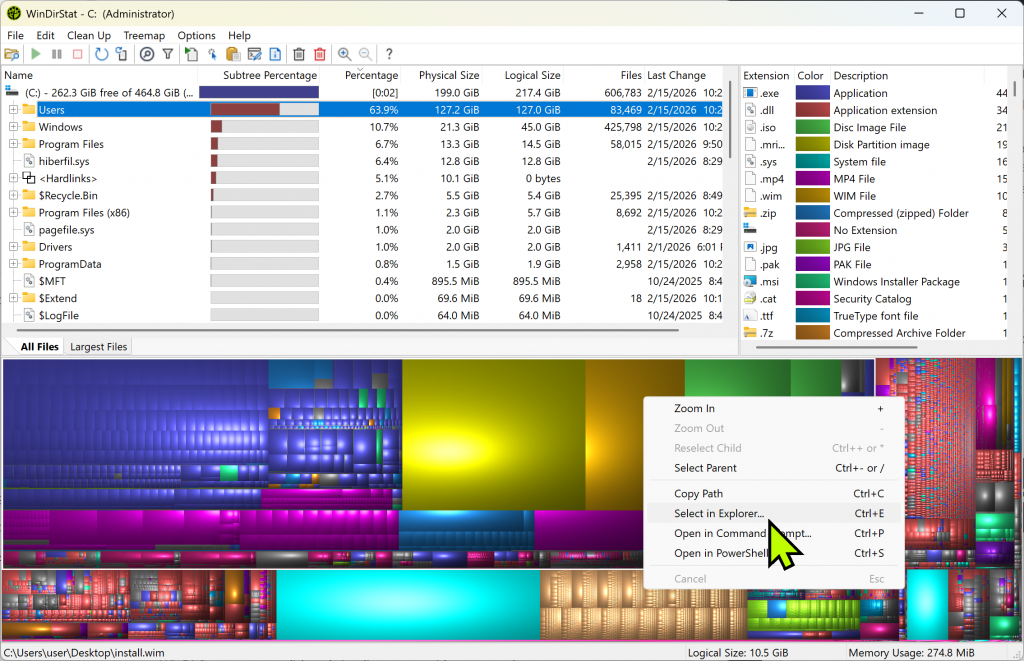
3) After scanning, folders are sorted by size automatically.
Large colored blocks represent individual files taking significant space.
Right-click a block and select Select in Explorer to open its location and delete or review the file.
✅
Pros
- Displays disk usage statistics in a clear treemap visualization
- Quickly identifies large files and folders consuming storage
- Free and open-source software
- Built-in cleanup options to delete unnecessary files
⚠️
Things to Note
- Windows-only application
- Initial scan may take time on large HDD drives
- Administrator rights recommended for full system scan
WinDirStat FAQ
Q
A
Q
A
Q
A