
Victoria 5.37
Free SSD / HDD bad sector scan and repair utility for Windows
SSD prices are still relatively high, so replacing a slow drive is not always the first option.
Instead of discarding a drive immediately, you can scan it for bad sectors and attempt remapping.
Victoria 5.37 is a powerful free diagnostic tool that detects damaged sectors and prevents the system from using unstable areas.
By isolating problematic sectors and allowing only healthy sectors to be used, it can sometimes improve drive stability and performance — especially on traditional HDD drives.
Victoria 5.37 Download
You can download Victoria using the link below.
After extracting the ZIP file, it is ready to use immediately.
Victoria 5.37 Bad Sector Scan and Repair Guide
Select the disk you want to scan from the disk list on the right side.
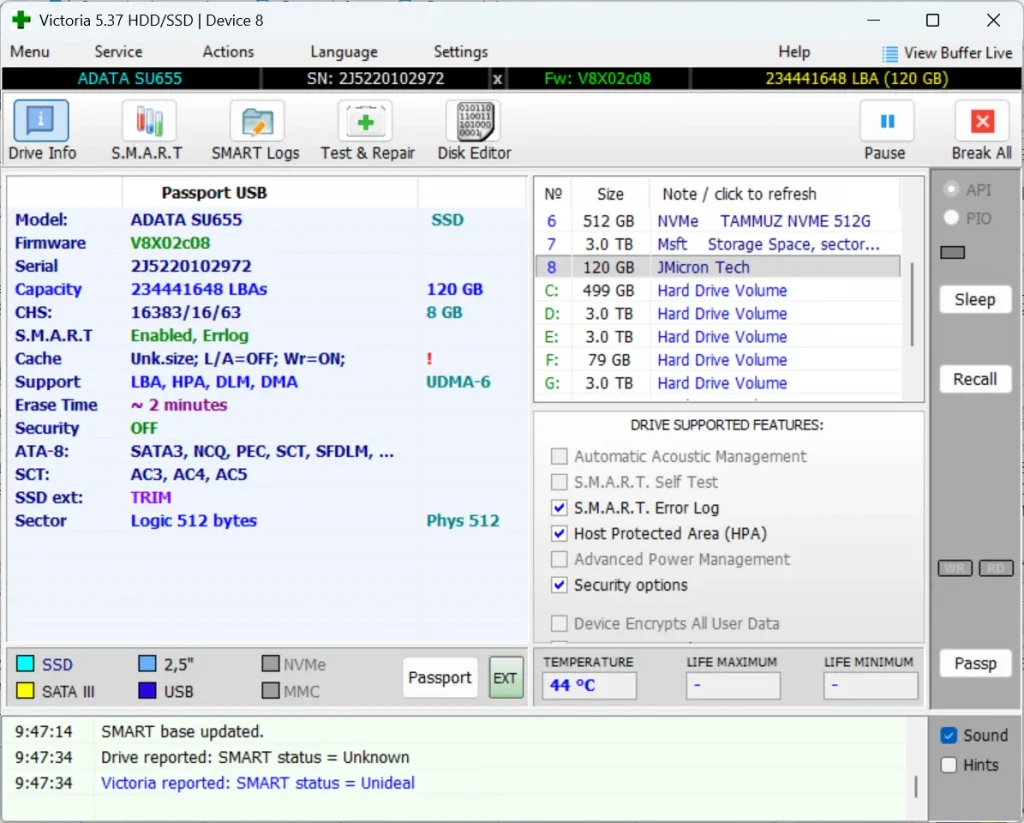
Using Read + Remap (Safer Option – No Data Deletion)
-
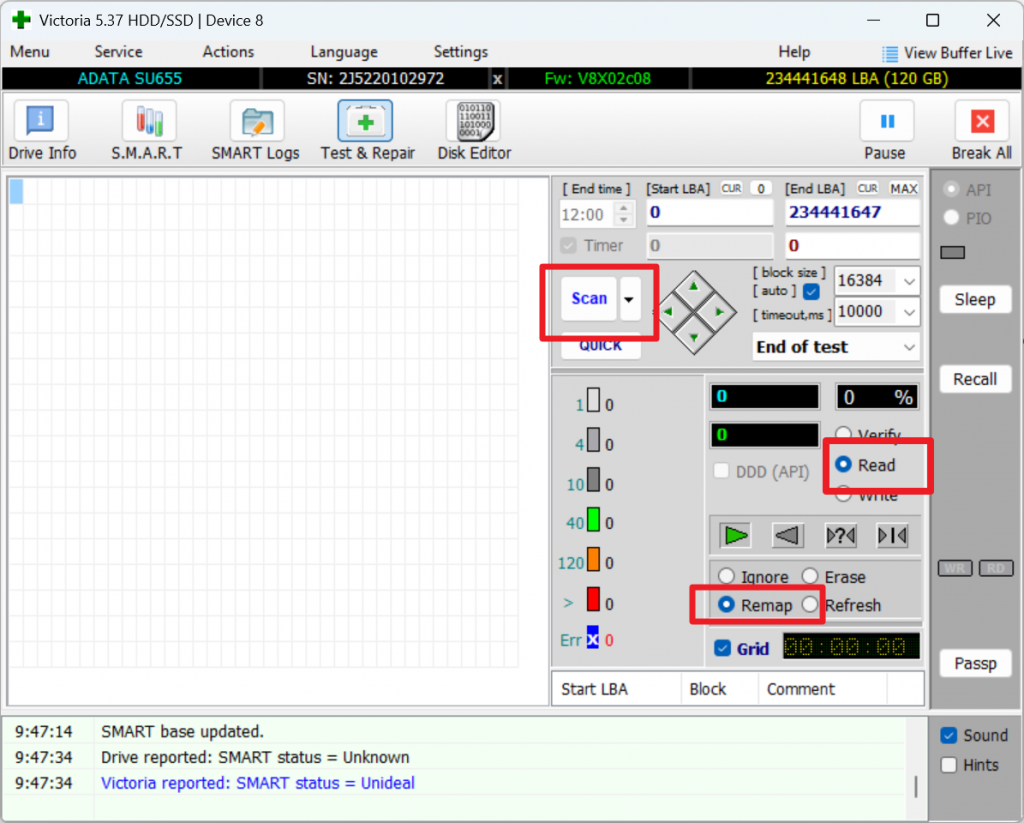
Open Victoria and go to the Test & Repair tab.
-
Select Read mode.
-
Choose Remap under the action options.
-
Click Scan to start scanning the drive.
🔹 Data Deletion:
Remap does NOT delete your existing data.
It attempts to reassign bad sectors to spare sectors without overwriting files.
Using Write (Advanced – Deletes Data)
-
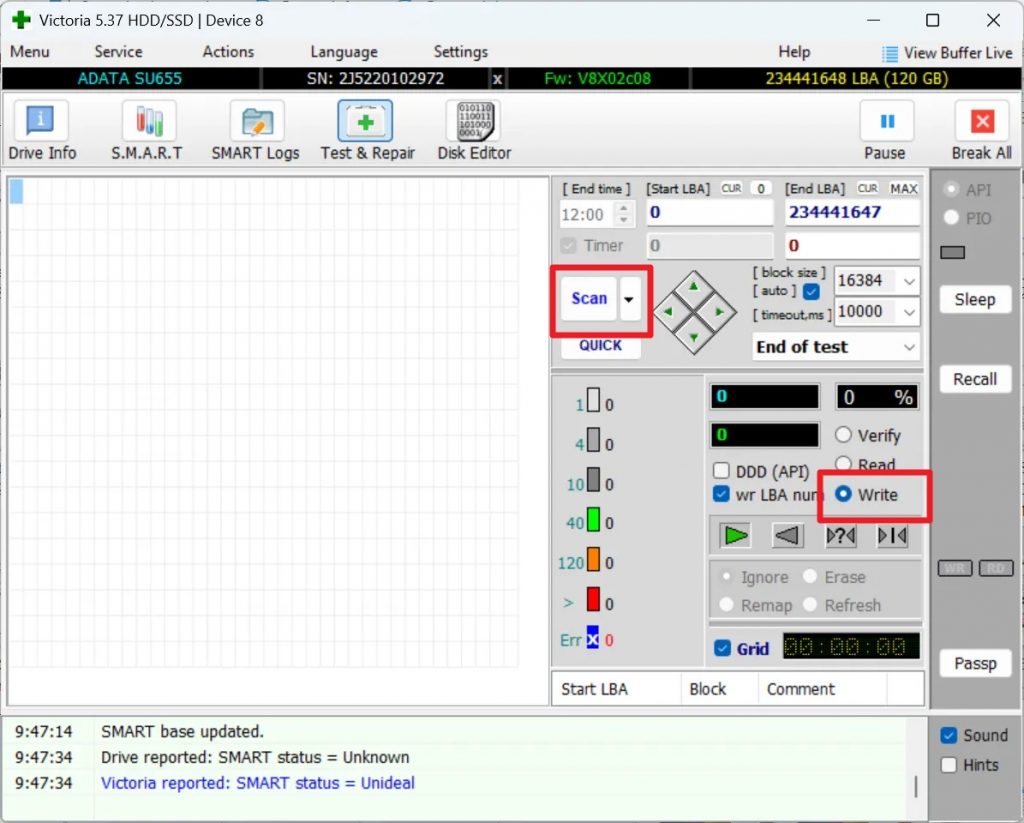
Open Victoria and go to the Test & Repair tab.
-
Select Write mode.
-
Click Scan to begin.
Victoria Write Mode Error – How to Fix It
Sometimes Write mode in Victoria may fail and display an error message. This usually happens when the disk is in read-only mode, locked by the system, or protected by the drive controller.
If Write mode does not work, you may need to completely initialize the disk using DiskPart.
⚠ Warning: This process will permanently erase all data on the selected disk.
Step 1 – Run Command Prompt as Administrator
Open Command Prompt with administrator rights.
Step 2 – Use DiskPart to Reset the Disk
diskpart
list disk
select disk X
clean
Replace X with the correct disk number.
The clean command removes all partition information (MBR or GPT) and resets the disk.
Step 3 – Recreate the Partition
After cleaning the disk, create a new partition and format it.
Then reopen Victoria and try Write mode again.
Important Notes
- MBR or GPT format does not directly prevent Write mode.
- Write errors are often caused by read-only protection or drive controller safety mode.
- If Write continues to fail on an SSD, the drive may be near the end of its lifespan.
- Always back up important data before attempting repair operations.
🔹 Data Deletion:
Write WILL overwrite data in the scanned area.
This may permanently delete files in the tested sectors.
🔹 Important:
-
Always back up your data before using Write.
-
Write forces the drive to rewrite sectors, which may trigger internal reallocation.
-
Not recommended for SSD unless absolutely necessary.
- Easy-to-use interface suitable for beginners
- Includes photo editor, batch editor, collage maker, and GIF creator
- Lightweight program that runs smoothly on most Windows PCs
- Free version available with essential editing features
- Windows-only software (Version 3.7 does not support macOS)
- Limited advanced editing tools compared to professional software
- Optional additional software may appear during installation
TIP During installation, uncheck any optional bundled software if you only want to install PhotoScape.
PhotoScape 3.7 FAQ
Q
PhotoScape is not launching after installation.
A
Restart your computer and try running the program again. If the issue continues, reinstall PhotoScape using administrator rights.
Q
How do I batch edit multiple photos?
A
Open PhotoScape and select the “Batch Editor” tab. Add multiple images, apply your desired adjustments, and save them all at once.
Q
Is PhotoScape 3.7 safe to use?
A
Yes. PhotoScape 3.7 is a safe and widely used photo editing program. Always download it from a trusted source to avoid bundled software.