
TreeSize Free
Powerful disk space analyzer for Windows to visualize and manage storage usage efficiently
Many Windows users suddenly run into a “low disk space” warning without knowing what caused it.
Manually checking folders one by one rarely helps because hidden or large files are hard to locate.
TreeSize Free quickly scans your drive and shows exactly which folders and files are using the most space.
In this guide, you’ll learn how to identify storage hogs and free up space safely in just a few minutes.
TreeSize Free Download
You can download TreeSize Free using the link below.
After installation, it is ready to use immediately.
How to Install TreeSize
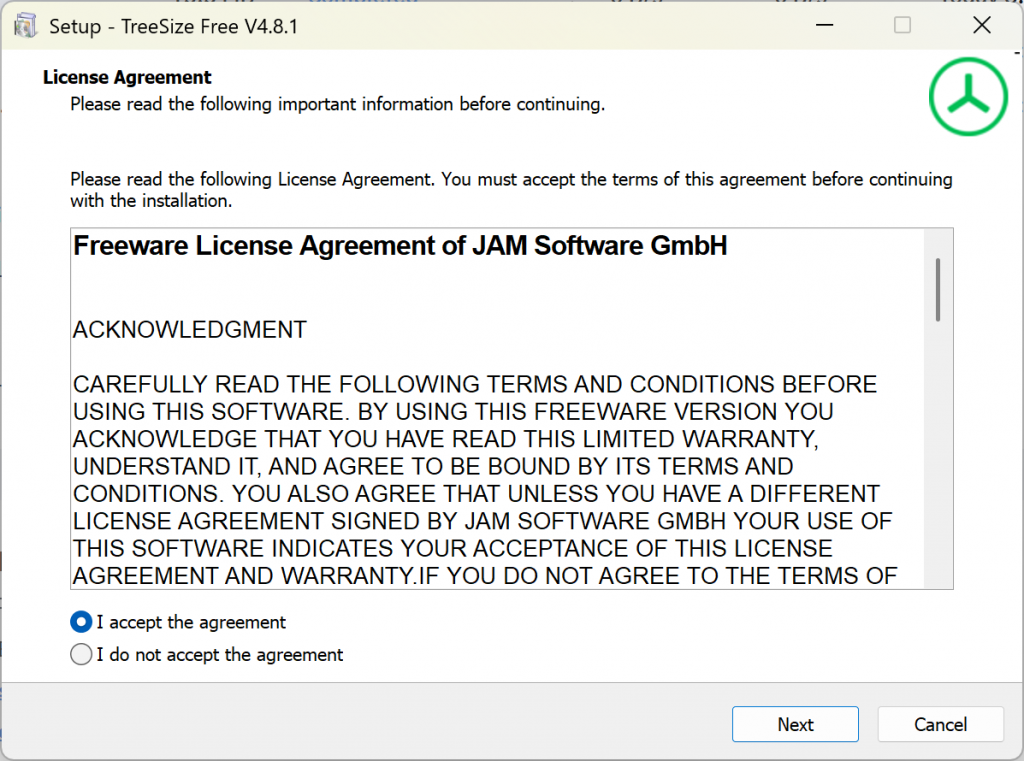
1) Accept the license agreement (I accept the agreement) and click Next.
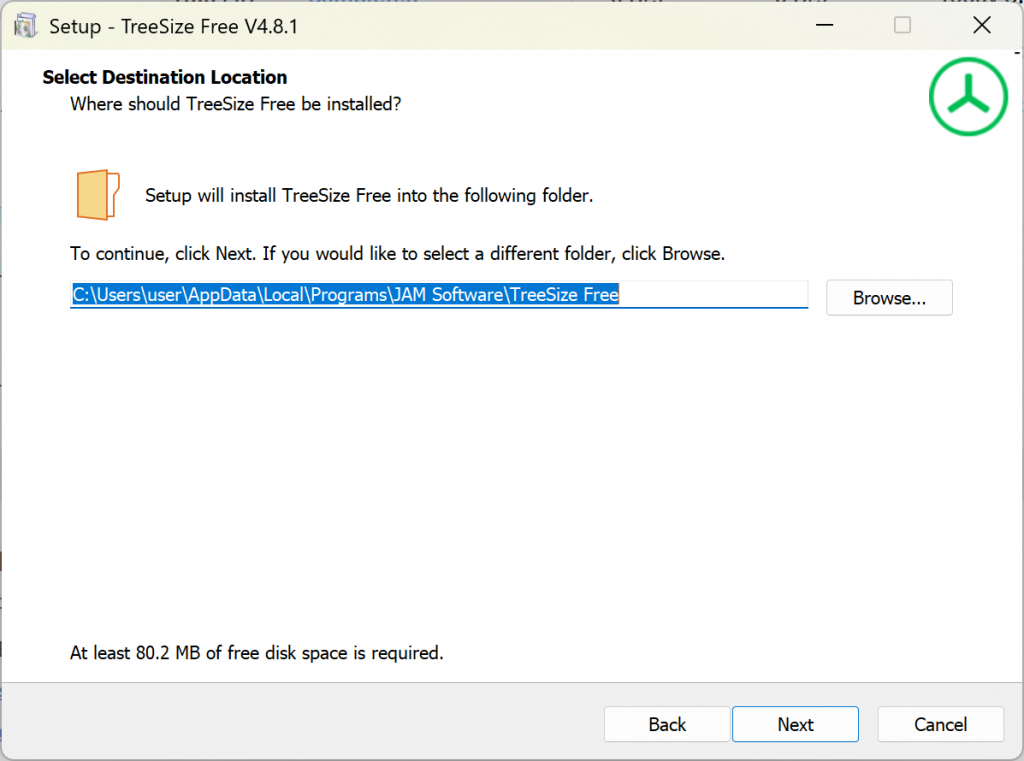
2) Leave the installation path as default and continue.
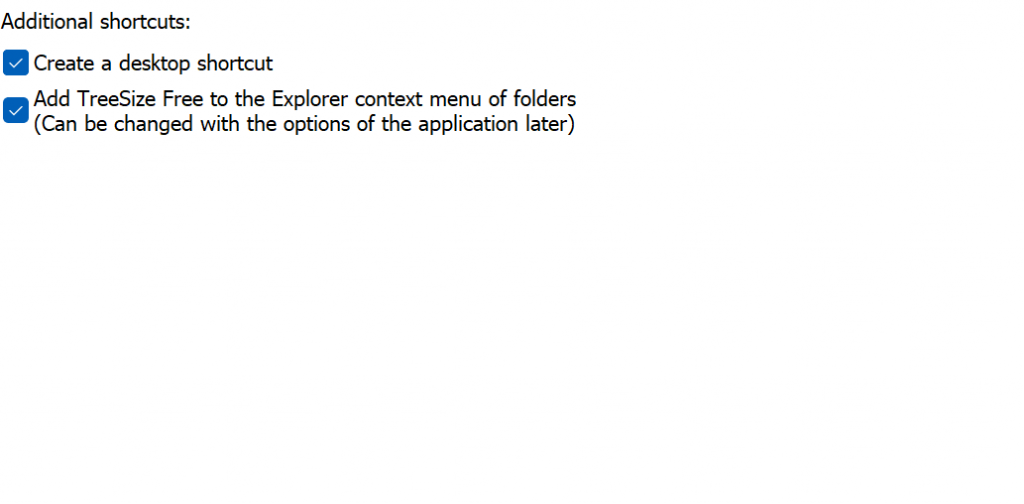
3) Important option: **Add TreeSize Free to the context menu of folders**.
If enabled, you can right-click any folder and instantly analyze disk usage without opening the program manually. Recommended to keep it checked.
How to Use TreeSize
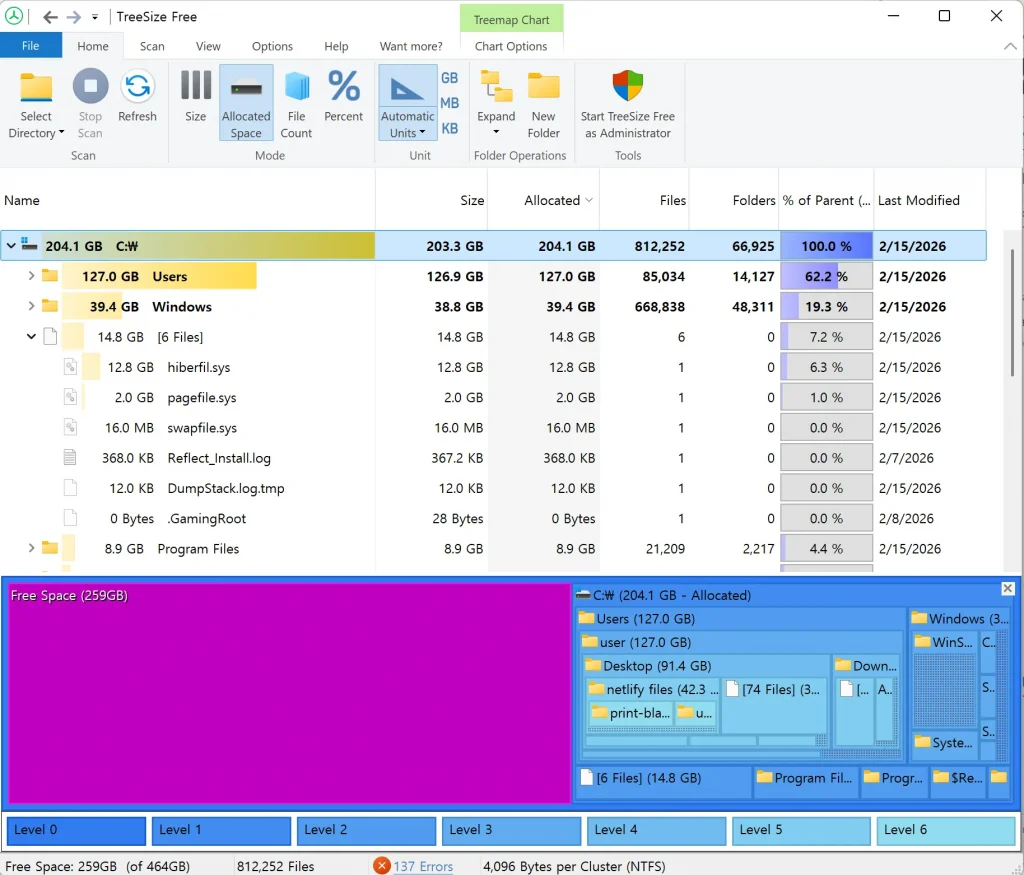
1) Click **Select Directory** at the top. A drive selection window will appear.
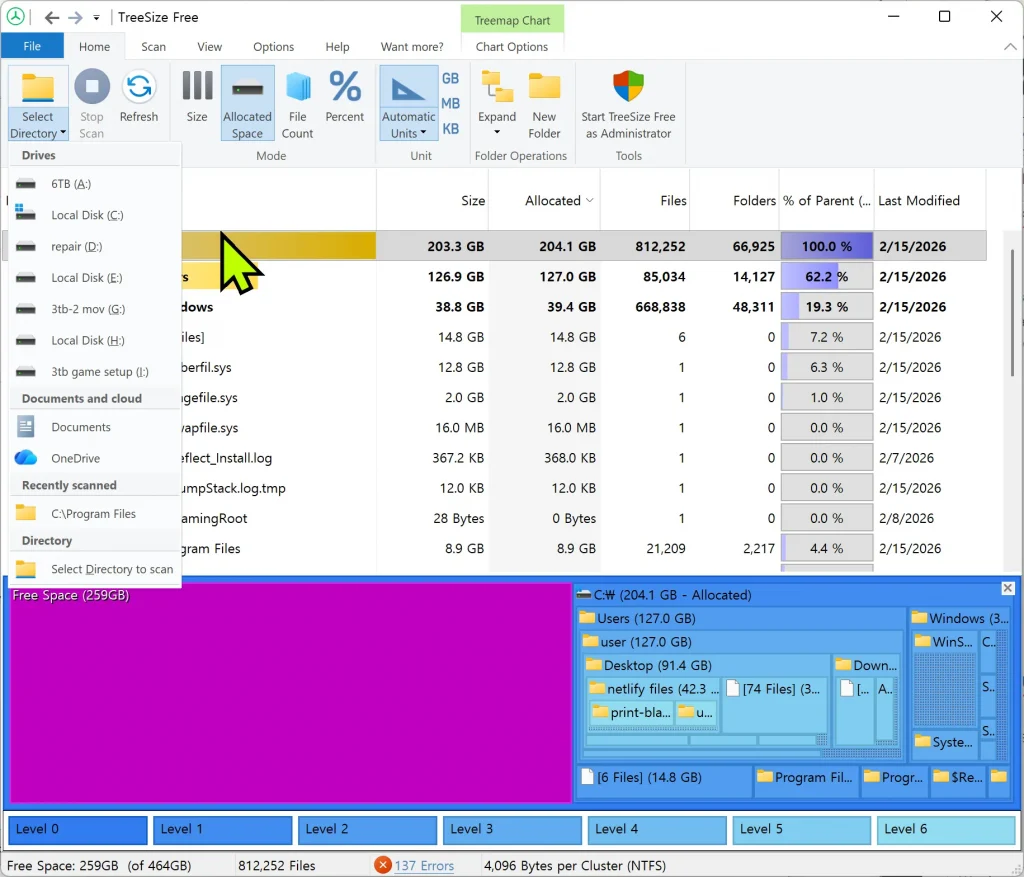
2) Choose the drive you want to analyze.
Folders will automatically be sorted by size, making it easy to see what is taking up the most disk space.
✅
Pros
- Quickly identifies which files and folders are using the most disk space
- Visual treemap makes storage usage easy to understand
- Right-click context menu allows instant folder analysis
- Free version is sufficient for most users
⚠️
Things to Note
- Windows only application
- Large drives (especially HDD) may take time to scan
- Administrator rights may be required to analyze system folders
TreeSize FAQ
Q
A
Q
A
Q
A