
PhotoScape 3.7
Free and easy photo editing software for Windows users
PhotoScape 3.7 is a lightweight and user-friendly photo editing program for Windows.
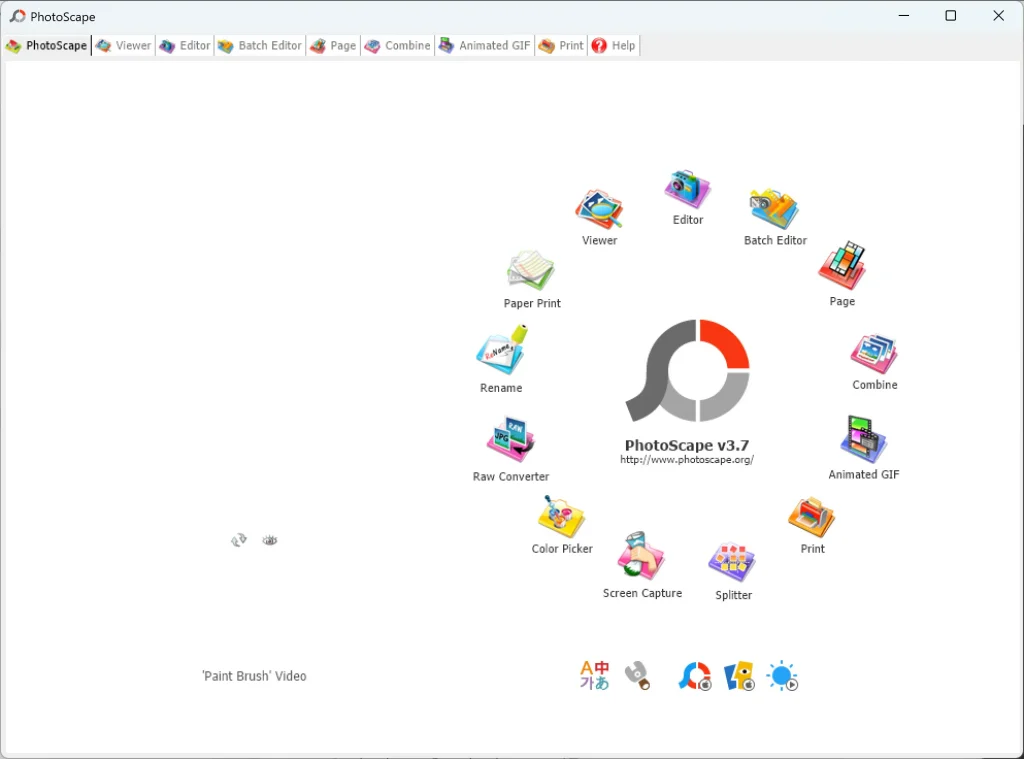
It includes essential tools such as photo viewer, editor, batch editing, collage maker, and animated GIF creation.
This guide explains how to download, install, and use PhotoScape 3.7 safely and efficiently.
PhotoScape3.7 Download
You can download PhotoScape using the link below.
After installation, it is ready to use immediately.
PhotoScape 3.7 Installation Guide
Download and Setup Easily
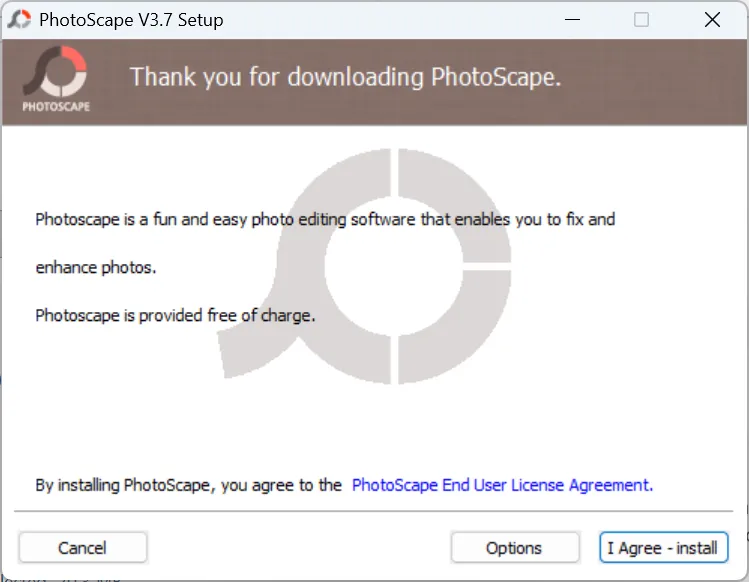
1)On the first installation screen, click “I Agree – Install” to proceed.
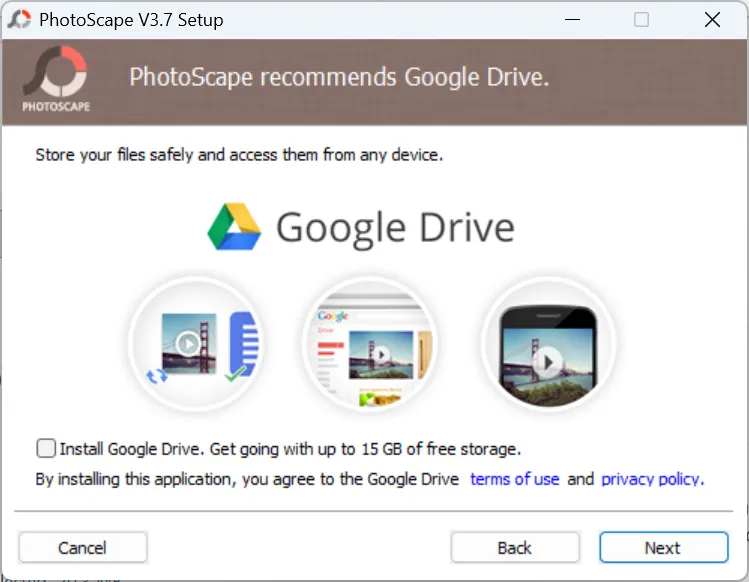
2) On the next screen, make sure to uncheck the Google Drive installation option if you do not want to install additional software.
3)Once the installation finishes, the program will run automatically.
PhotoScape X Download (Windows 10 / 11)
If you are using Windows 10 or Windows 11, PhotoScape X is the better choice.
It offers improved performance and modern features, and it is also free to use.
✅
Pros
- Easy-to-use interface suitable for beginners
- Includes photo editor, batch editor, collage maker, and GIF creator
- Lightweight program that runs smoothly on most Windows PCs
- Free version available with essential editing features
⚠️
Things to Note
- Windows-only software (Version 3.7 does not support macOS)
- Limited advanced editing tools compared to professional software
- Optional additional software may appear during installation
PhotoScape 3.7 FAQ
Q
A
Q
A
Q
A