In Windows 10, when you restarted your computer, your browser or File Explorer windows often reopened automatically.
But after upgrading to Windows 11, many users noticed this feature seemed to be missing — everything just closes on shutdown.
Actually, the same feature exists in Windows 11 — it’s just disabled by default. You’ll need to turn it on manually.
Here’s a quick step-by-step guide to enable app auto-restore after restart.
1️⃣ Open Settings
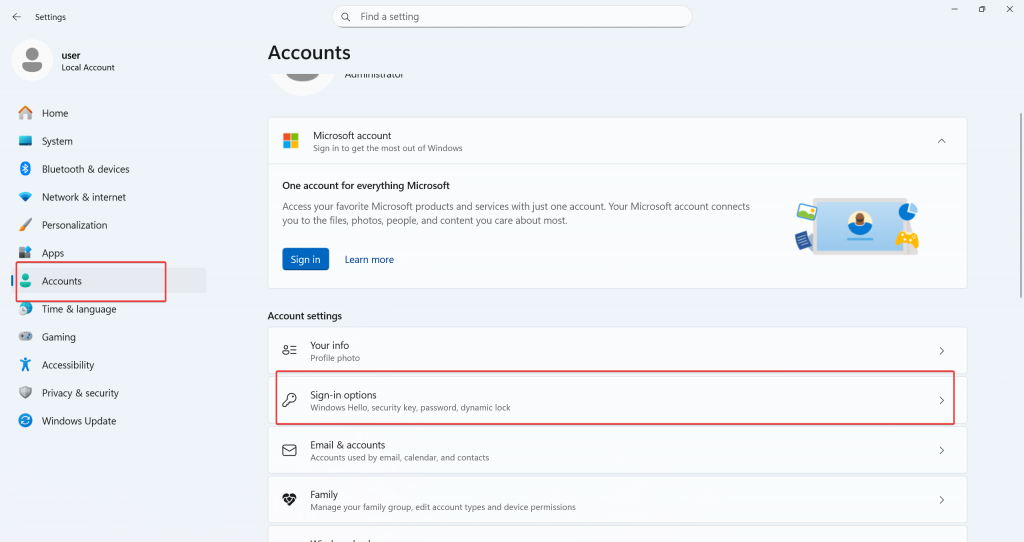
Click the Start menu → Settings.
2️⃣ Go to Accounts
From the left-hand sidebar, click on Accounts.
3️⃣ Choose Sign-in Options
On the right panel, click Sign-in options.
4️⃣Find the Restartable Apps Option
Scroll down and look for:
Automatically save my restartable apps and restart them when I sign back in
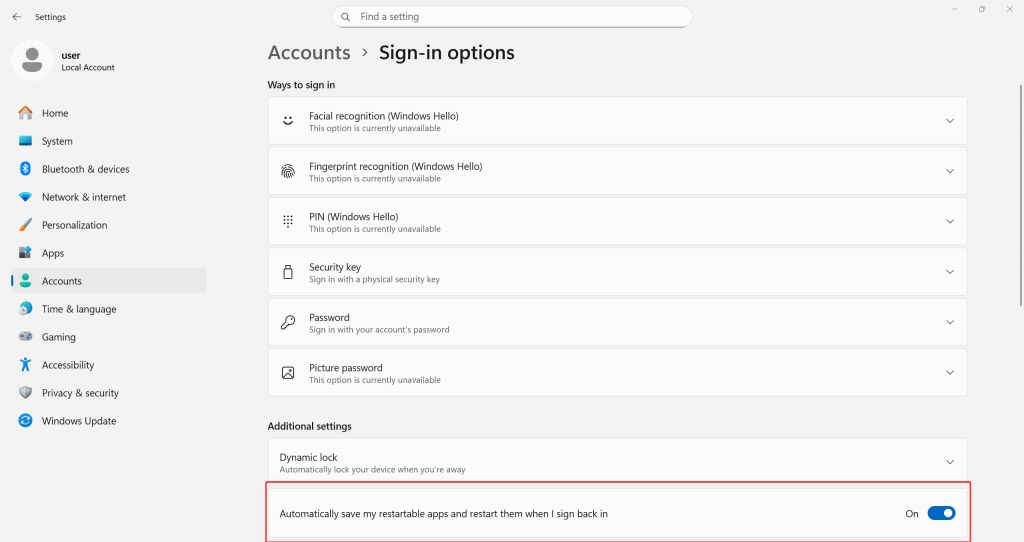
5️⃣ Turn It On
Toggle the switch to On.
✅ What Happens Next?
Once enabled, Windows 11 will automatically reopen apps that were running before shutdown or restart — including tools like Excel, Notepad, Word, and more.
If you had multiple Chrome profiles open, the Chrome user picker will appear on reboot too.
This way, you can pick up right where you left off — no need to manually relaunch everything each time you reboot.
Summary
- 🔁 Windows 11 can reopen apps after restart, just like Windows 10
- ⚙️ You must manually enable this under Settings → Accounts → Sign-in options
- 💼 Useful for resuming work quickly without reopening apps manually
Give it a try and boost your productivity after every reboot!